
Once your players are added to your league, you can reorganize your rosters and enrich each profile with a jersey number, positions, a skill rating and private notes. This guide covers each of them.
Moving players between teams
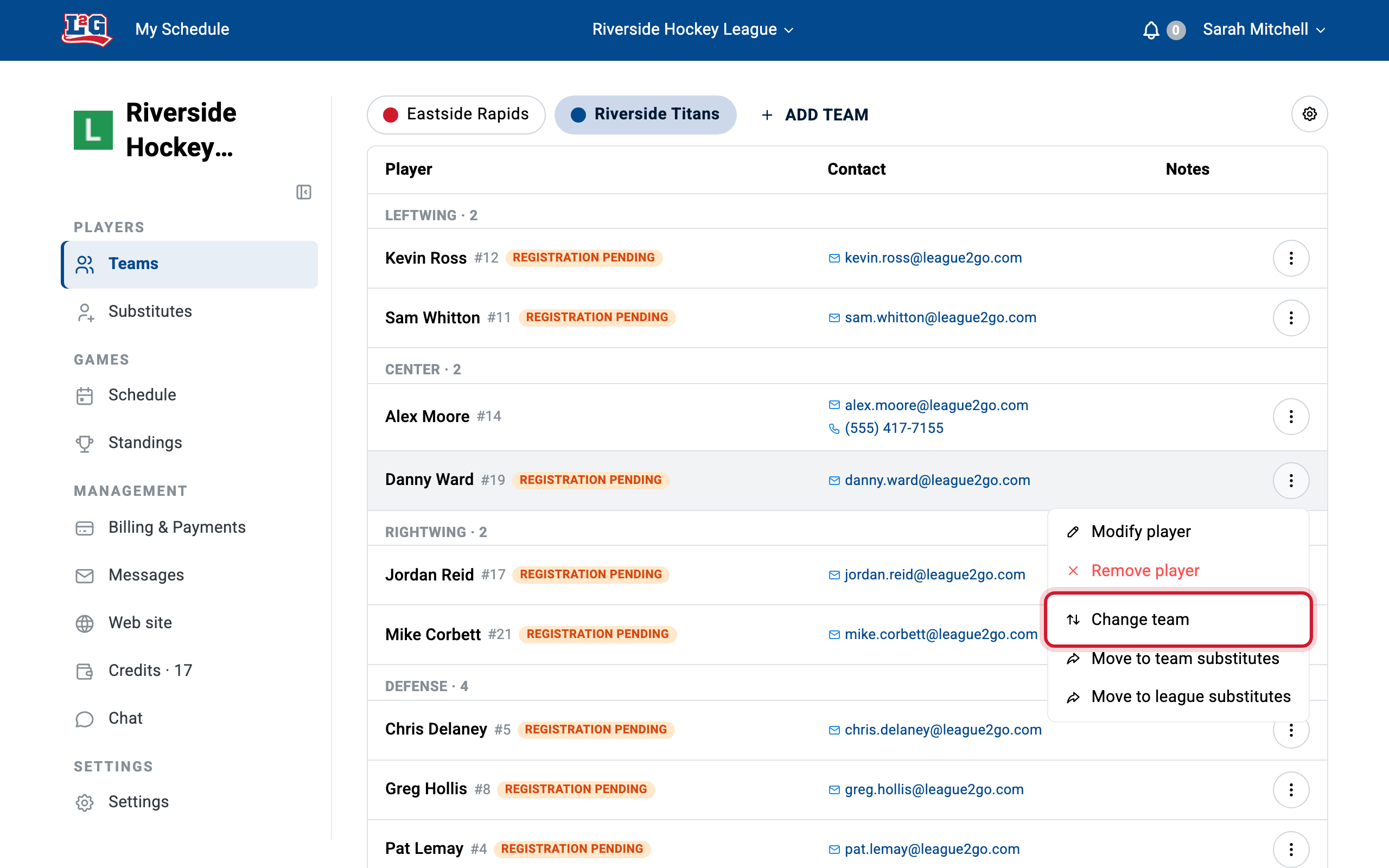
You don’t need to delete and recreate a player to reorganize your rosters. In the Teams tab, open the action menu next to a player to move them to another team in one click.
Converting a player to a substitute (and back)
The same action menus let you move people between your rosters and your substitute pool:
- In the Teams tab, use a player’s action menu to move them to your league’s pool of substitutes.
- In the Substitutes tab, use a substitute’s action menu to make them a regular player on a team.
The person keeps the same account either way; only their role in your league changes.
Jersey numbers
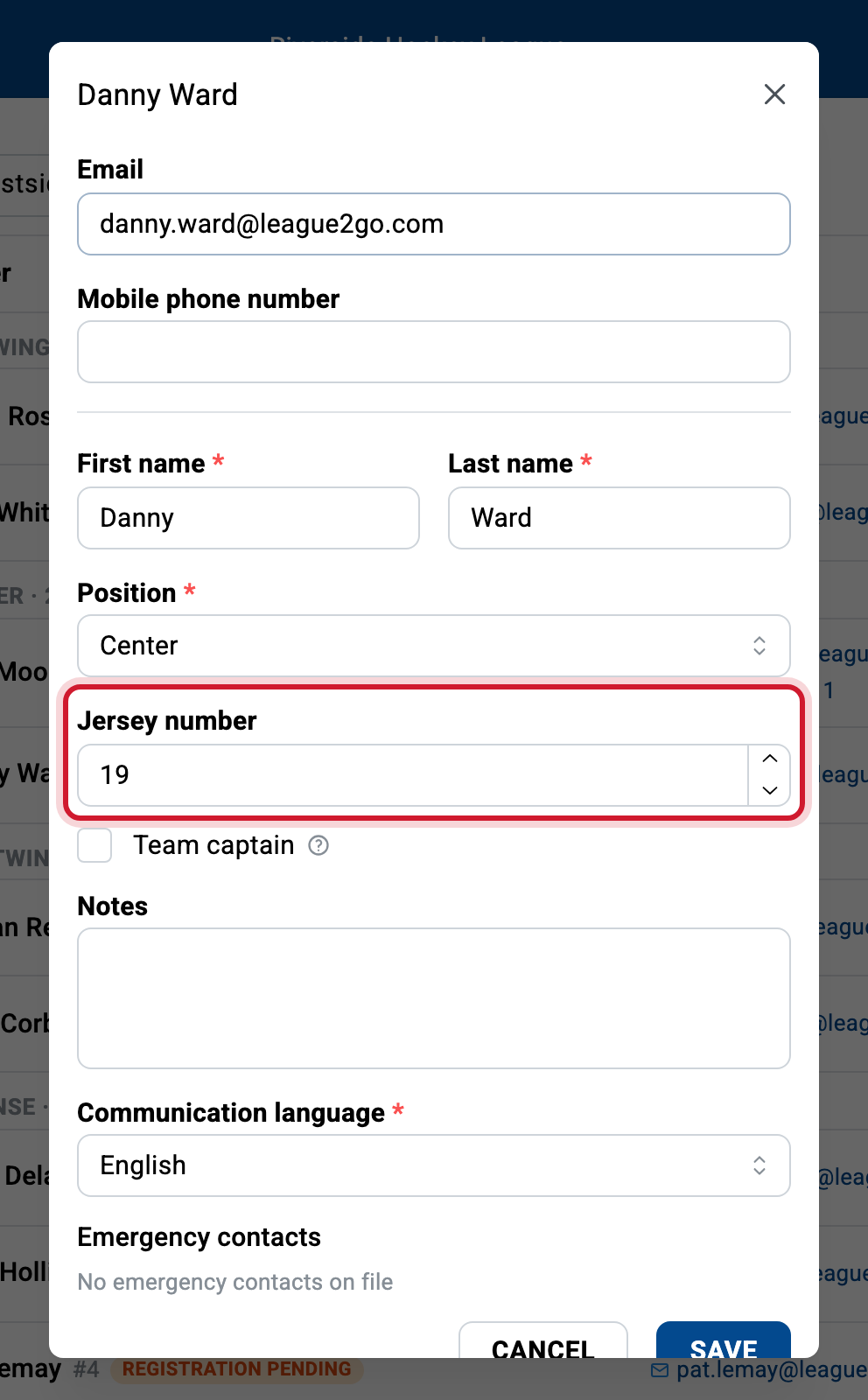
To assign a jersey number, edit the player from the Teams tab and enter the number. Jersey numbers are displayed next to the player’s name, which makes rosters and lineups easier to read.
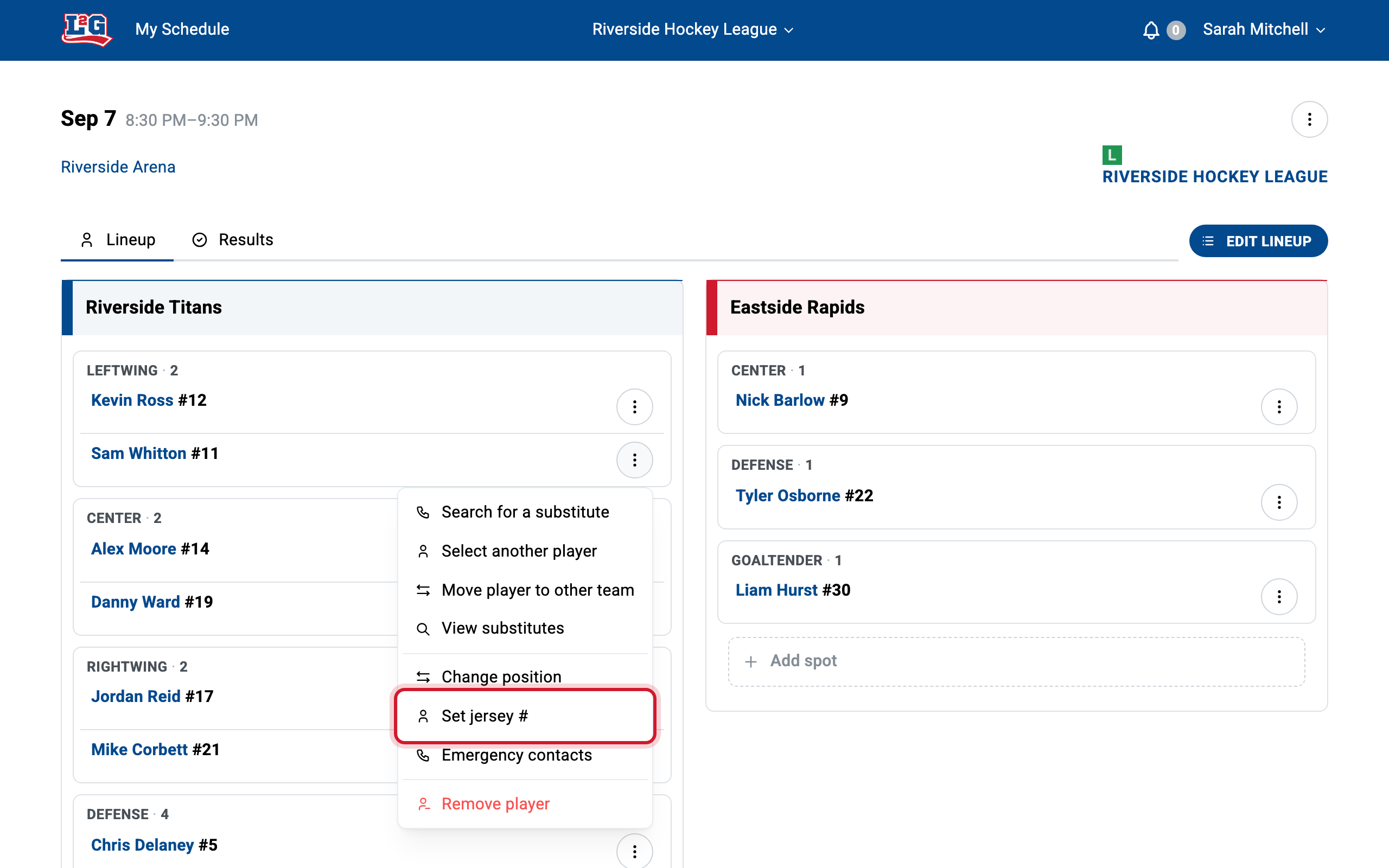
You can also override a player’s number for a single game from the action menus in the game details, useful when a player borrows a jersey. These menus also let you enter jersey numbers for substitutes.
Positions
Each player and substitute has one or more positions, chosen from the position configuration of your league (defined by the sport in your league settings). Positions matter for two reasons:
- They structure your game lineups.
- The automatic substitute search contacts substitutes who can play the position of the absent player. Check every position a substitute can play so they are contacted as often as possible.
Player skill ratings
Skill ratings help you keep teams balanced and find substitutes of the right level.
Enabling and configuring skills
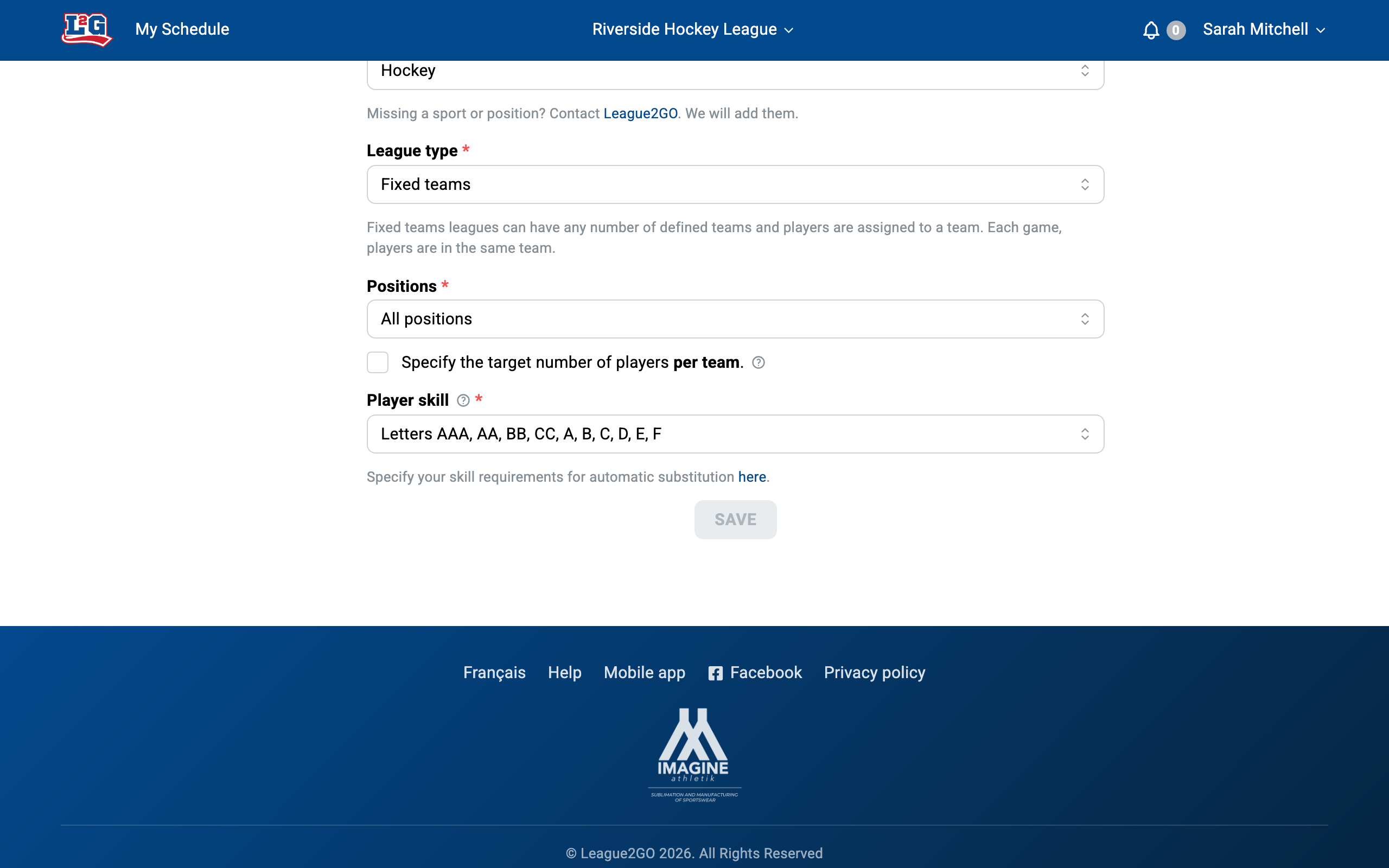
Activate player skill in the General tab of your league settings. Choose the scale that suits your league:
- Letters: “AAA”, “AA”, “BB”, “CC”, “A”, “B”, “C” and “D”.
- Numbers: from 1 to 1000 (or simply 1 to 100) for more flexibility.
Assigning skills to players
In the Teams and Substitutes tabs, assign a skill to each player. You must enter a skill for each of the player’s positions. The skill is displayed below the player’s name in the team and substitute tables. If a player has no skill configured, an exclamation point appears next to them in the table to flag the problem.
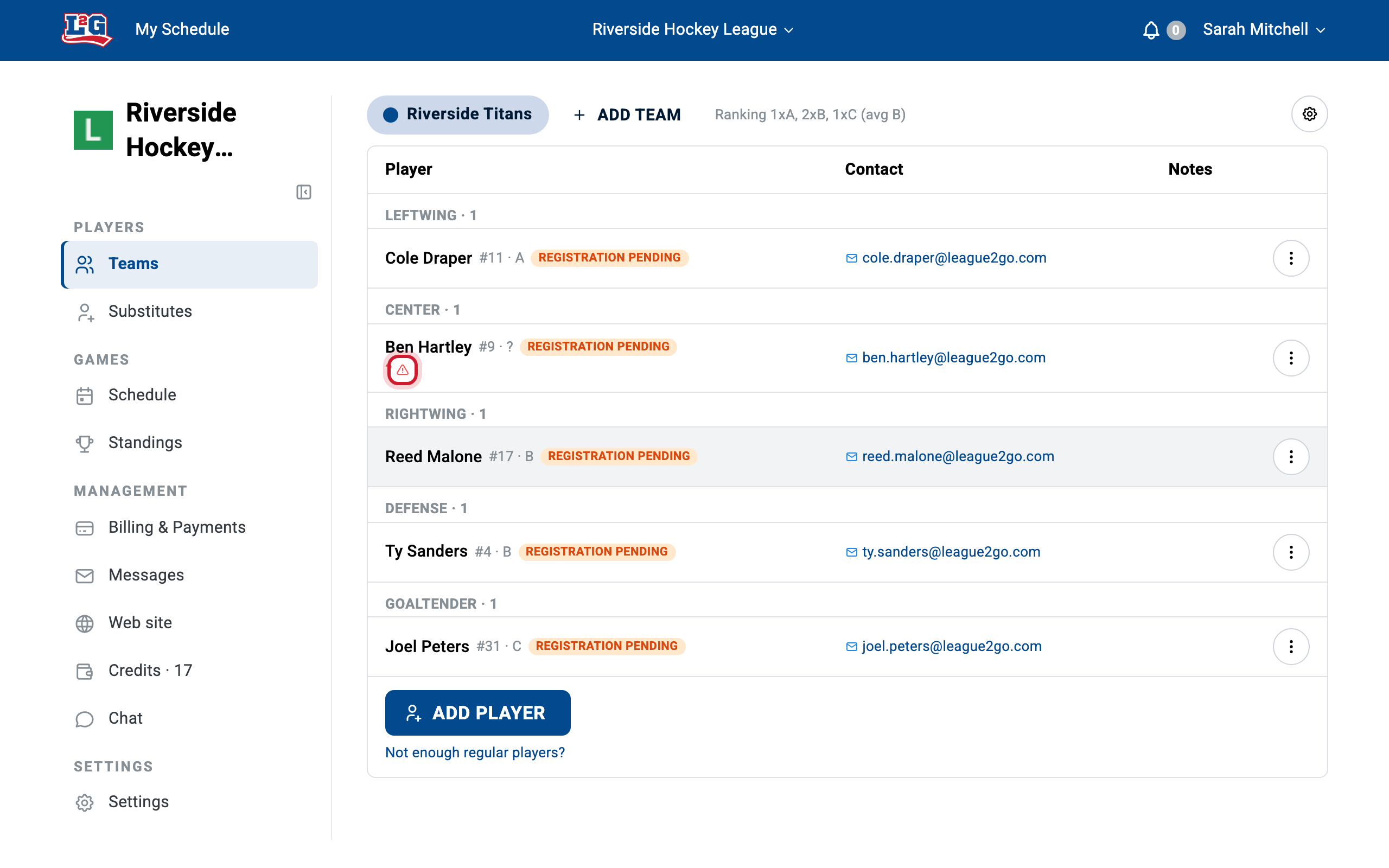
Skill ratings are visible only to league managers and team captains; players do not see how you rated them.
What skills are used for
- Automatic substitute search: when a player declares an absence, League2GO contacts substitutes whose skill falls within a range relative to the absent player. You control how strict or flexible that range is. See the substitute search settings.
- Manual selection: skills are displayed in the game details, so you can hand-pick a substitute of a similar level. When you add a spot to a game, you can also specify the skill required to fill it automatically with a player of the right level.
Private notes on players
You can write notes on each player or substitute in your league: for example payment reminders, availability quirks, or anything useful to your management. Notes are visible only to league managers and to the captains of the player’s team; players never see them.
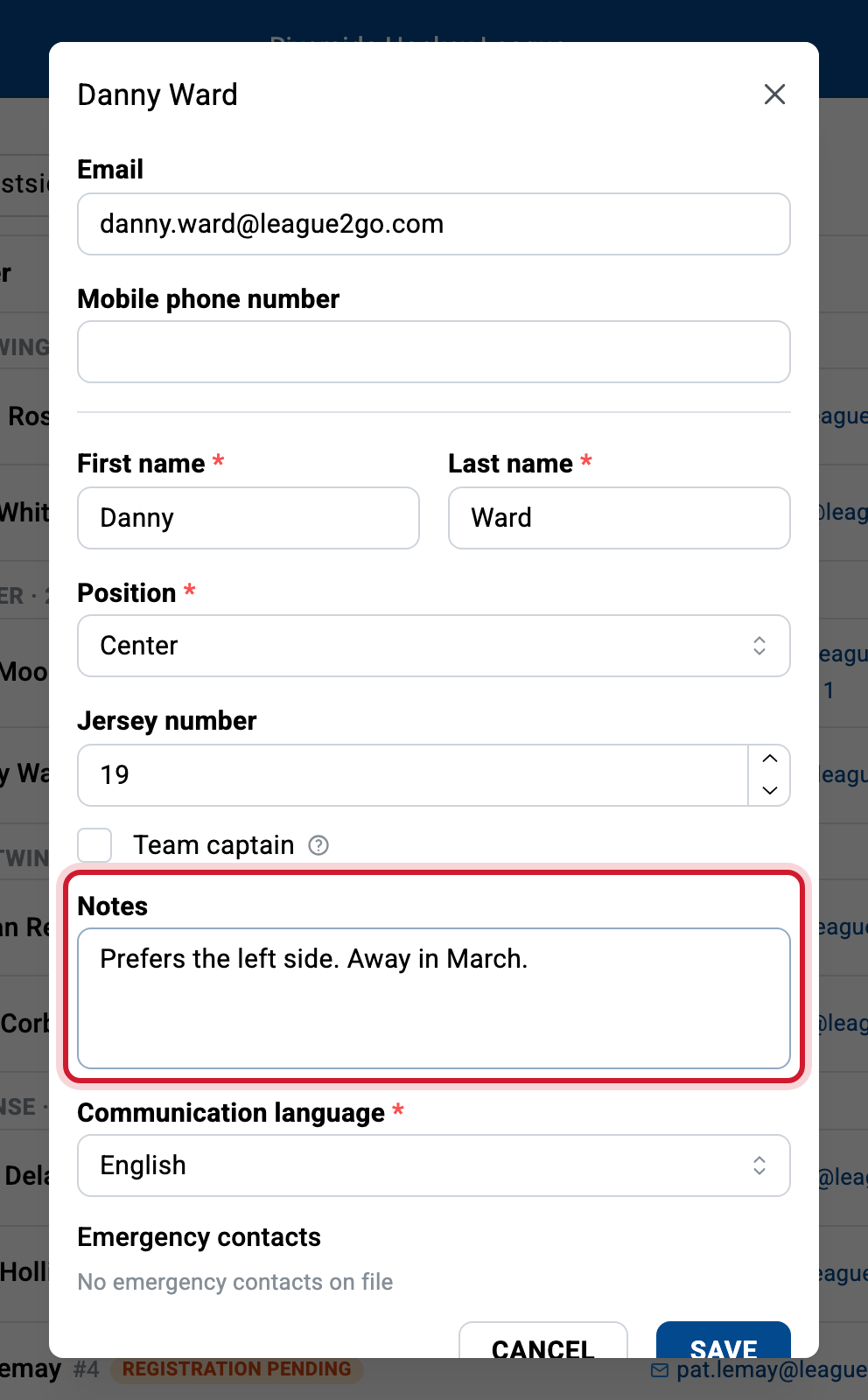
Captains can help
Team captains can declare absences for the players of their team, launch substitute searches, and edit the information of players who have not yet registered. See roles and access for what each role can do.
Questions? Contact us at info@league2go.com.