
When a player cannot make a game, League2GO can find a replacement for you. Eligible substitutes are contacted automatically, in waves, and the first one to accept gets the spot. This article explains the sequence so you can trust it, and diagnose it when a game stays short-handed.
To configure the behavior described here, see substitute search settings. To build and maintain your substitute lists, see managing substitutes.
What starts a search
A search starts when:
- A player declares their own absence for a game (from the app or the website).
- A manager declares an absence on a player’s behalf and explicitly requests a search. A manager-declared absence alone does not start a search; this lets you record an absence without triggering requests, for example when you already have a replacement lined up.
A search does not start when:
- The team’s lineup is still at or above the target player count configured for your league: no replacement is needed, so no one is contacted.
- Your league’s automatic search is disabled (search start set to 0 days before games). In that case you pick substitutes manually.
Requests go out within the window configured in your league settings (a number of days before the game). If an absence is declared earlier than that, the search waits until the window opens.
Who is contacted, and in what order
League2GO does not blast every substitute at once. Candidates are contacted in successive waves:
- Favorites first, then progressively wider circles of substitutes, with a configurable delay between each level.
- Within each wave, a substitute is only contacted if they play the absent player’s position.
- A substitute’s skill rating must fall within the configured range relative to the absent player’s rating. If your league widens the range gradually, substitutes further from the absent player’s rating are contacted later, as the range expands.
The exact tiers, delays and rating ranges are all yours to configure. See substitute search settings for each option.
The first substitute to accept gets the spot: the lineup is updated and everyone involved is notified. Substitutes who accept too late are informed that the spot is already filled.
Reminders to substitutes who have not answered
Substitutes who received a request but have not responded get an automatic reminder closer to the game. For example, if your league sends substitution requests a week before games, you can configure an automatic reminder two days before the start of the game. You never have to chase substitutes manually.
Following a search in progress
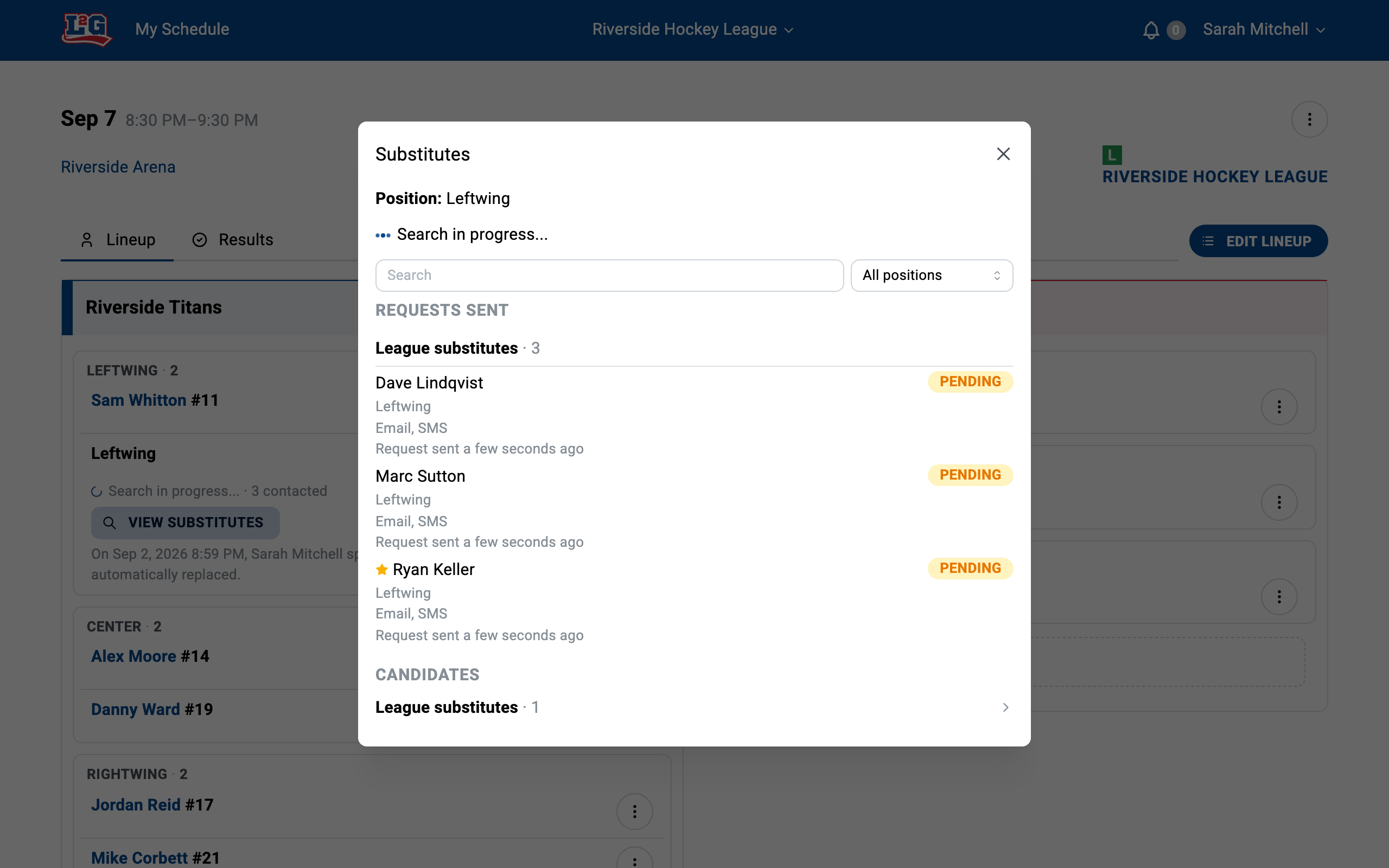
From the game, open the view substitutes panel to see who was contacted for each open spot. This is the first place to look when you wonder whether the search is working: it shows exactly which substitutes received a request.
Why a specific substitute was not contacted
Almost every “the search is broken” situation is one of these. A substitute is skipped, or delayed, when they:
- Already declined the request for this game.
- Have an unanswered previous request: League2GO waits for their answer before sending another.
- Are already playing in an overlapping game.
- Would be contacted during your league’s do-not-disturb hours: the request is held and sent when the period ends, not skipped.
- Have notifications disabled.
- Never completed their registration: a substitute who has not finished signing up cannot receive requests. See adding players for how registration works.
- Do not yet match the position or skill-rating range for the absent player; they may still be contacted later if your league widens the range gradually.
If a substitute insists they never got a request, check the view substitutes panel first, then their registration status, then their notification settings.
Questions? Contact us at info@league2go.com.