
This is the reference for every option that controls the automatic substitute search. Unless noted otherwise, all options live in your league settings, Substitutes tab. Your substitute lists themselves are managed elsewhere. See managing substitutes.
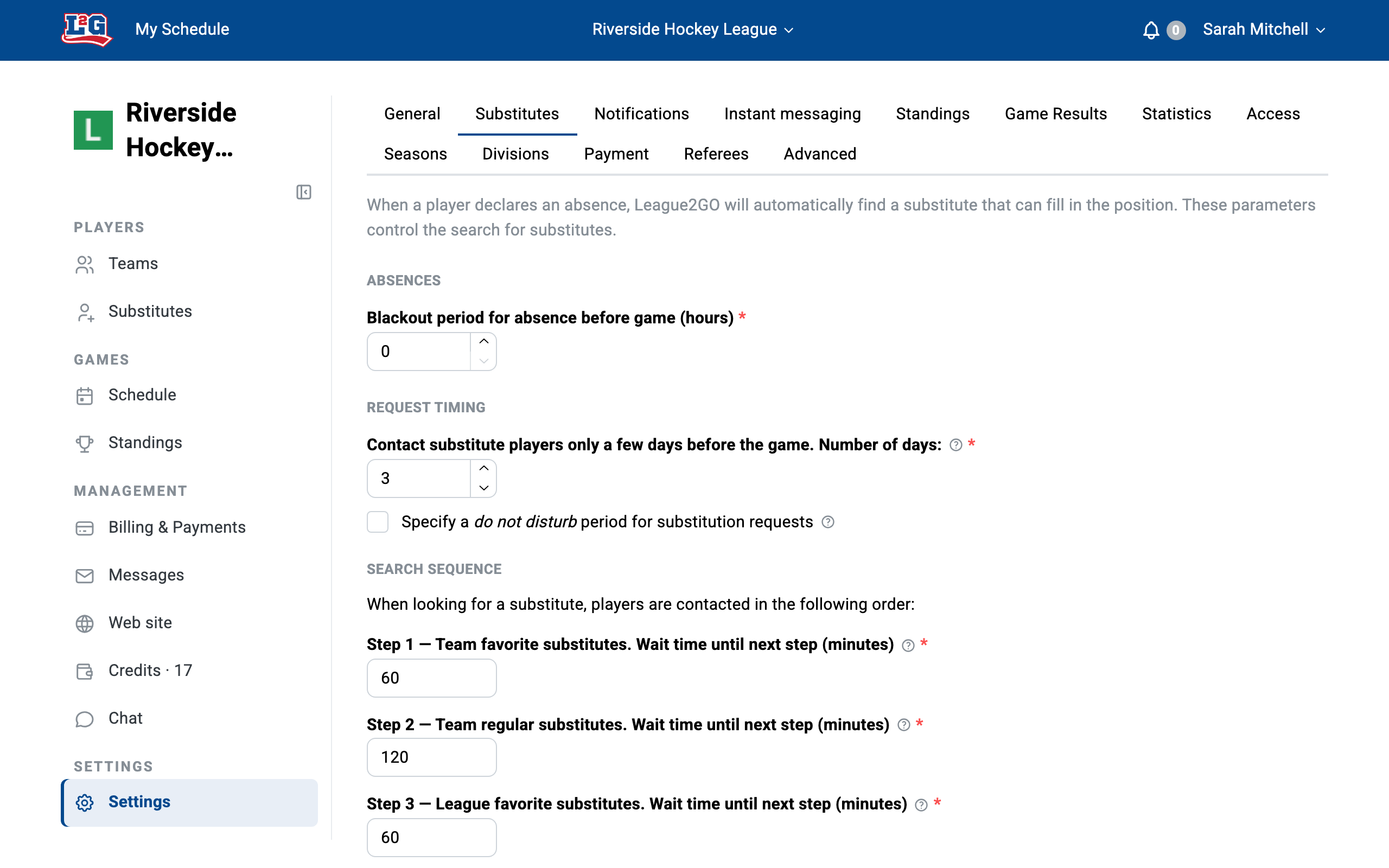
When the search starts
What it does: sets how many days before a game substitution requests start going out. An absence declared earlier waits until this window opens; an absence declared later triggers the search immediately.
When to change it: shorten it if substitutes accept then forget about far-away games; lengthen it if your games are hard to fill.
Set it to 0 to disable the automatic search entirely. No requests are sent and you pick substitutes manually for each game.
Example: with the search set to start 7 days before games, an absence declared 3 weeks ahead sits quietly until 7 days before the game, then requests go out.
Automatic reminder for substitutes
What it does: sends an automatic reminder, a configurable number of days before the game, to substitutes who received a request but have not answered.
When to change it: place it close enough to the game to create urgency, but leave the search time to widen to other substitutes afterwards.
Example: requests go out 7 days before the game; the reminder is set to 2 days before. A substitute who ignored the first message gets one nudge 2 days out.
Target players per team
What it does: sets how many players you want in each team’s lineup, per position. A search only starts when an absence drops the lineup below the target; if you carry more regulars than the target, the first absences trigger nothing.
When to change it: match it to how many players actually take the field (or ice, or court) for your league.
Example: target of 10 players, team roster of 11 regulars. The first declared absence leaves 10 available: no search. The second absence drops the lineup to 9 and starts a search for one substitute.
Skill ratings and rating ranges
Ratings let the search propose substitutes of comparable caliber to the absent player.
Choosing the scale: in the General tab of your league settings, choose letters (“AAA”, “AA”, “BB”, “CC”, “A”, “B”, “C”, “D”) or numbers (1 to 1000; use 1 to 100 if that suits your needs) as your rating scale. Ratings are visible only to team captains and league managers. You then assign a rating to each player and substitute, per position. See managing substitutes.
The range is always relative to the absent player. When a player is absent, only substitutes whose rating falls within the configured range around that player’s rating are contacted. Three ways to configure it:
- No rating criteria: you want ratings for your own reference, but any substitute may replace anyone. Set the range to its maximum (-1000 to 1000) and turn “Extend skill range gradually” off.
- Strict: set the range you require and leave “Extend skill range gradually” off. Substitutes outside the range are never contacted for that absence.
- Flexible: set an initial range, turn “Extend skill range gradually” on, set the final range, and enter the number of hours over which the range widens. The search starts with close matches and gradually accepts substitutes further from the absent player’s rating, useful when a full lineup matters more than a perfect match.
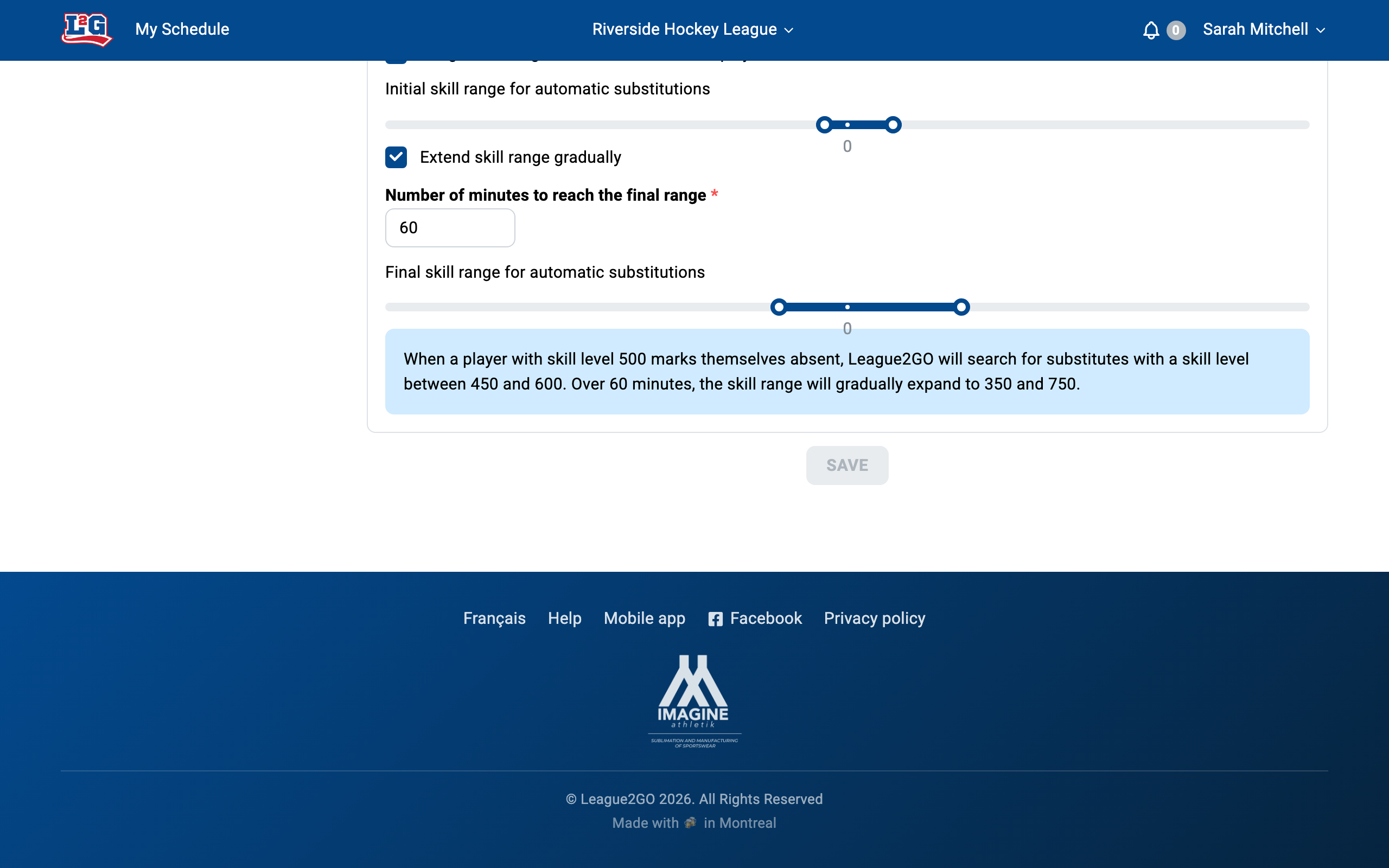
Example (flexible): a player rated “A” declares an absence. The initial range contacts substitutes rated “BB” to “C”. After 4 hours the range widens to “AA” through “D”, and after 8 hours to “AAA” through “D”. The lower bound stops at “D” because it is the lowest rating on the scale.
Favorites and contact order
What it does: the search contacts substitutes in tiers, favorites first: team favorites, then team substitutes, then league favorites, then league substitutes. You configure the delay between each level; the next tier is only contacted after that delay if the spot is still open. Favorites are marked with the star beside each substitute. See managing substitutes.
When to change it: use short delays if filling the spot fast matters more than who fills it; use longer delays to give your most reliable substitutes a real head start.
Example: with a 4-hour delay between levels, team favorites get the request first; 4 hours later the other team substitutes are added, then league favorites, then the rest of the league list.
Absence blackout period
What it does: sets a number of hours before the game during which players can no longer declare their own absence. This prevents last-minute declarations the search has no time to fill; the player has to contact you instead, and you decide how to handle it.
When to change it: set it to roughly the minimum notice your substitutes need to actually show up.
Example: with a 6-hour blackout, a player cannot declare an absence at 5 pm for an 8 pm game.
Do-not-disturb hours
What it does: defines a period during which no automated messages are sent to your players. Requests that would fall in the period are held and sent when it ends, never skipped. The configured delays between favorite and regular substitutes are still respected.
When to change it: turn it on so an absence declared at midnight does not wake up your substitute list.
Example: do-not-disturb from 10 pm to 8 am. An absence declared at 11 pm sends its first requests at 8 am the next morning.
Prices in substitution requests
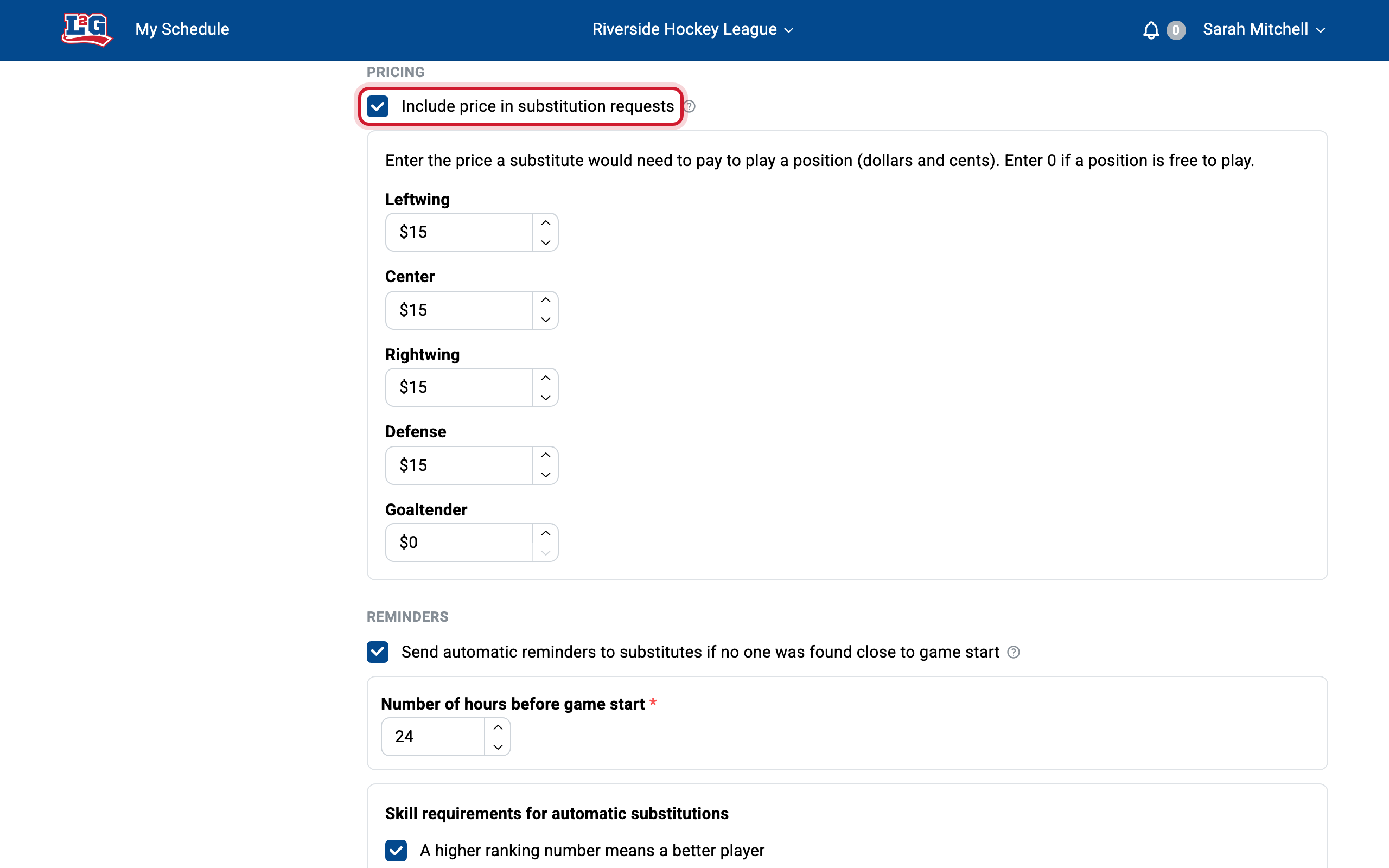
What it does: when you check Include prices in substitution requests, the amount a substitute pays to play is included in every request, and in the message sent to a substitute you assign manually. You enter an amount per position, and positions can differ: for example $20 for a defender or a forward, but free for a goalkeeper.
When to change it: turn it on so substitutes show up knowing what they owe. To collect the amount online rather than in cash, see online payments.
Position matching
Position matching is always on: a substitute is only contacted to replace a player whose position they play. The positions themselves come from your league configuration, and you check the positions each substitute can play in their profile; check every position they can cover so they are contacted as often as possible. See managing substitutes.
Questions? Contact us at info@league2go.com.