
League2GO lets your players and substitutes pay by credit card, so you never have to collect cash, give change, or chase payments at the rink. Payments are processed by Stripe and deposited directly into your league’s own Stripe account.
Three things to understand before you start:
- The money is yours, not League2GO’s. Payments flow through your league’s Stripe account; League2GO never holds the money.
- Refunds are issued by you, from your Stripe dashboard. League2GO support cannot refund a player, because League2GO never has the money.
- Stripe will email you about your account (identity or business verification). These emails can land in spam, and ignoring them gets your payouts suspended. See the Stripe compliance emails section below.
Connecting your Stripe account
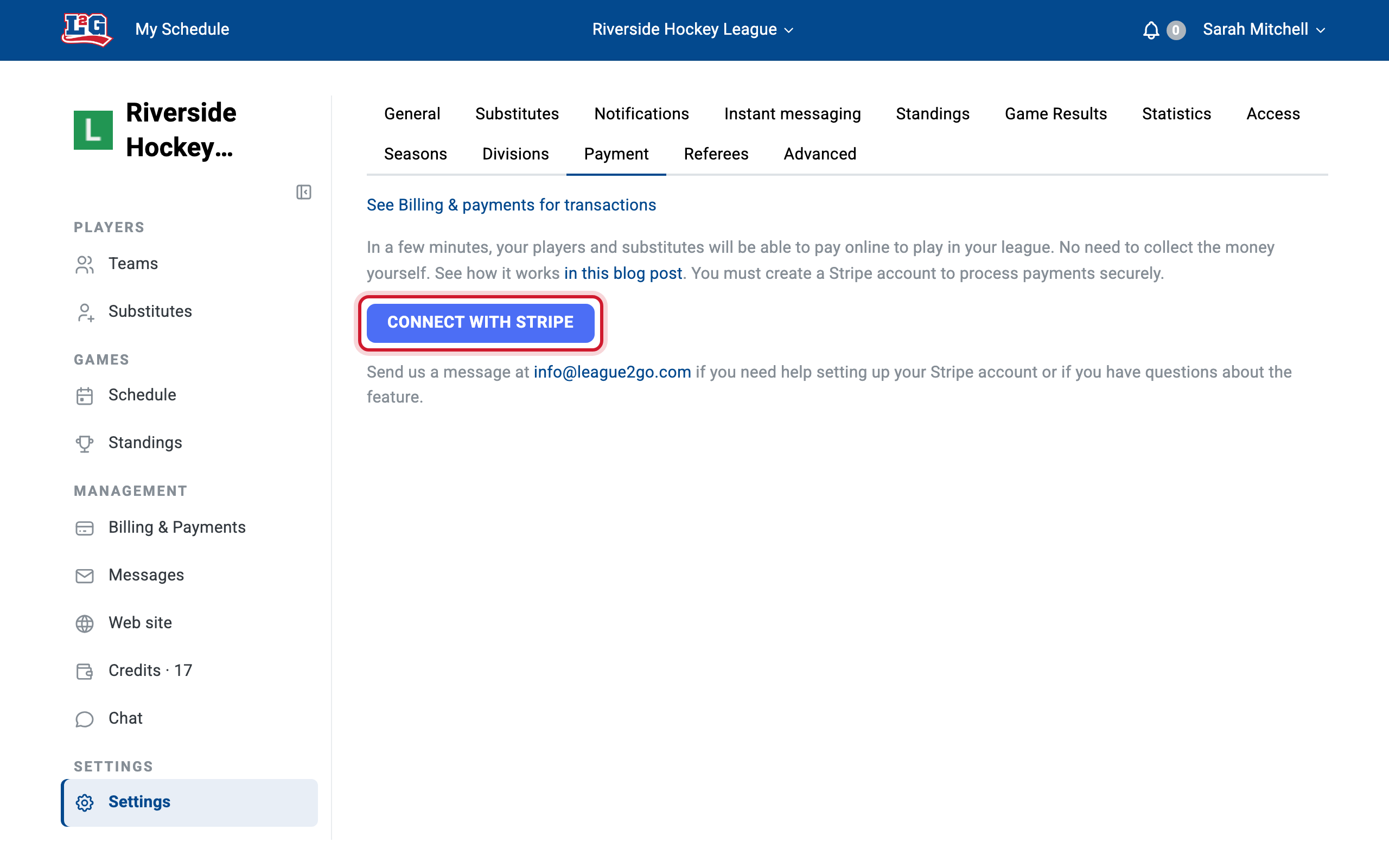
To activate payments, go to your league settings and open the Payment tab, then click Connect a Stripe account. You must do this on the website, not the mobile app.
Stripe then asks you to create an account and verify who you are. Most recreational leagues are not incorporated businesses, and that is fine. Here is how to answer the common questions:
- Type of business: choose Individual or sole proprietorship unless your league is incorporated. Enter your business number (Tax ID) if you have one, and your personal address as the business address.
- Business name / statement descriptor: enter your league name. This is what appears on your players’ credit card statements, so make it recognizable.
- Business website: activate your free league website on League2GO and paste its URL here.
- Business description: explain that you run a sports league that sells games or seasons. For example: “I own a sports league that sells hockey games to players and substitutes. I charge customers before the start of the game.”
- Identity: enter your legal name, date of birth, and social insurance number; Stripe requires this to verify your identity.
- Bank account: select your currency and enter your bank account information (you can find it on a specimen cheque). This is where Stripe deposits your payouts.
Finally, enter an email address and password for your Stripe account. Use them anytime at stripe.com to see your payments, payouts, and issue refunds.
Fees
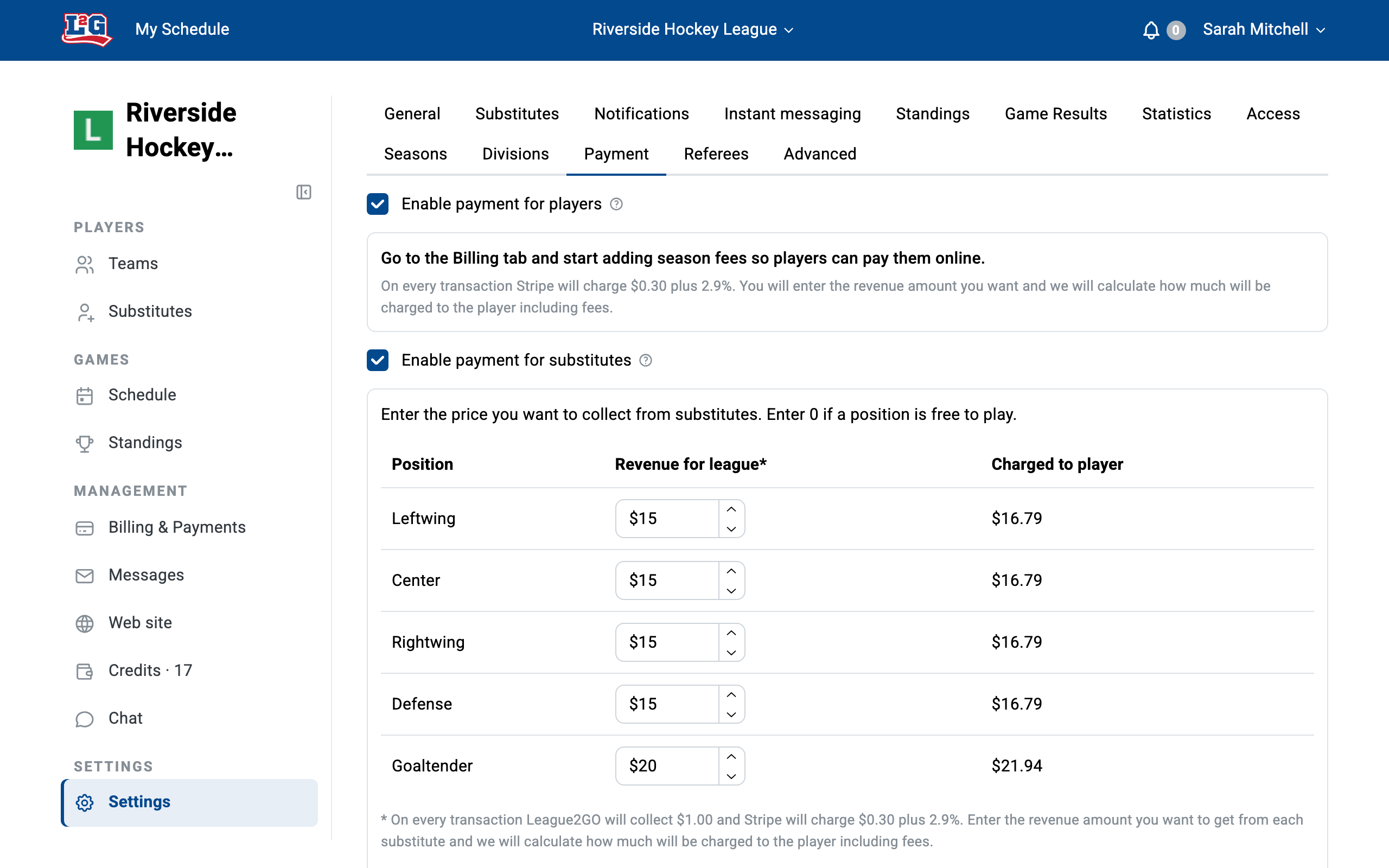
For every amount you charge, you enter the revenue you want the league to receive, and the processing fees are added on top of the player’s payment, so the league gets the full amount you entered.
- Stripe fee: 2.9% + $0.30 per transaction (charged on every payment).
- League2GO fee: $1.00 per substitute payment. Regular-player payments (season fees) have no League2GO fee.
You never have to compute this yourself: the price table lists the exact amount charged to the player beside each price you enter, and the current fees are spelled out underneath it.
Charging substitutes per game
In the Payment settings, set the price substitutes pay to play.
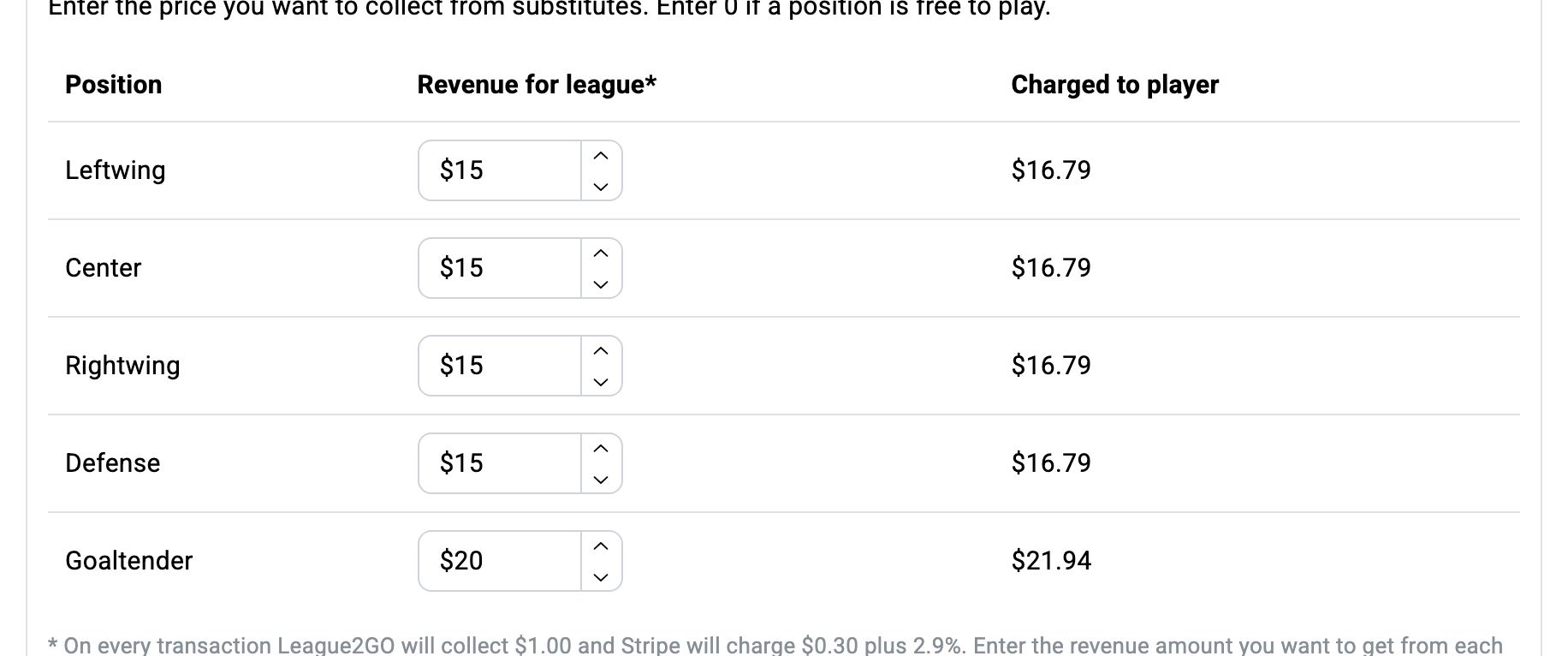
When a substitute accepts a spot in a game, a window asks them to confirm the payment. The first time, they enter their credit card; after that, the saved card makes it one tap. If they choose to pay later, they can reopen the payment form from the game page, or pay you cash at the game.
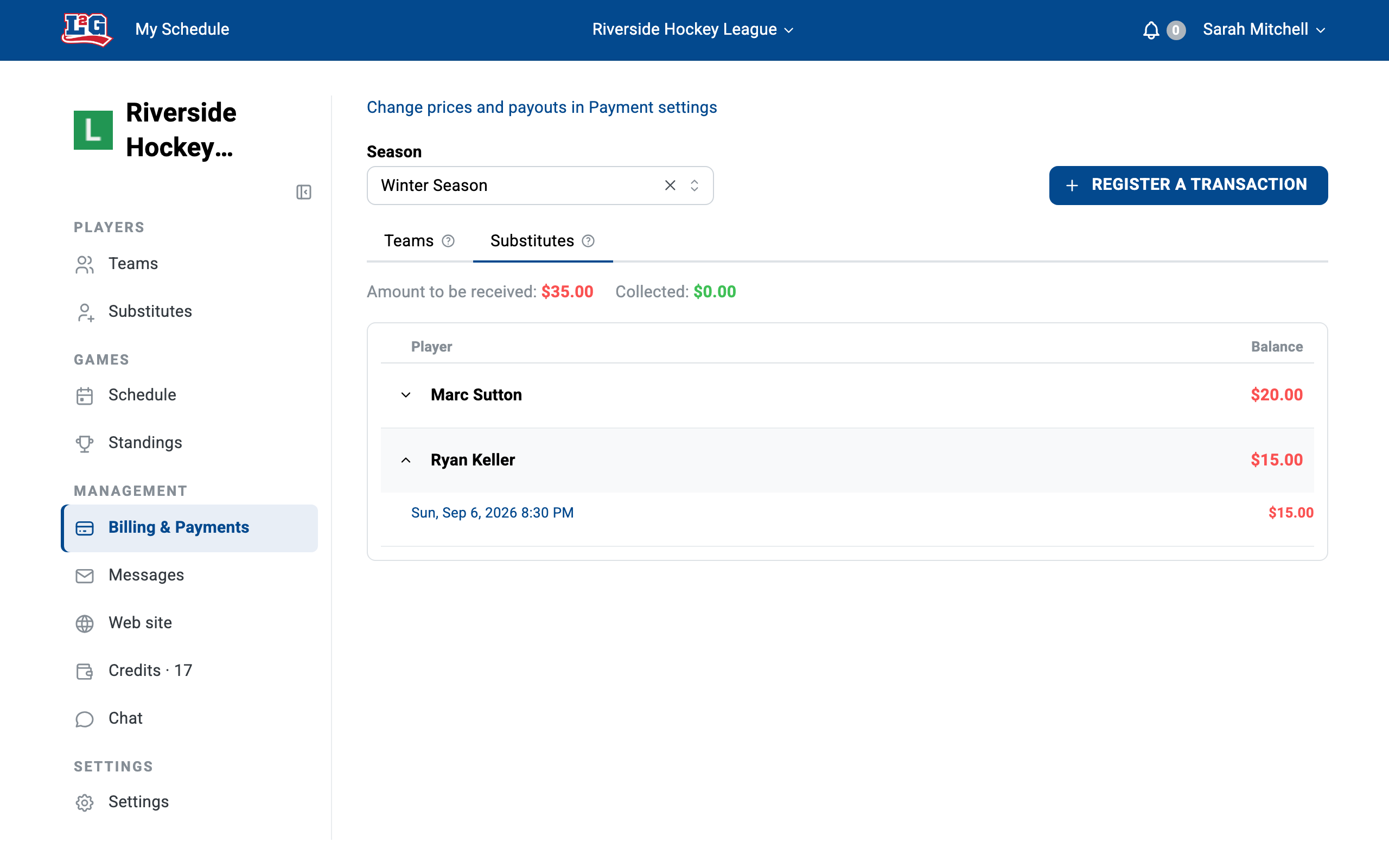
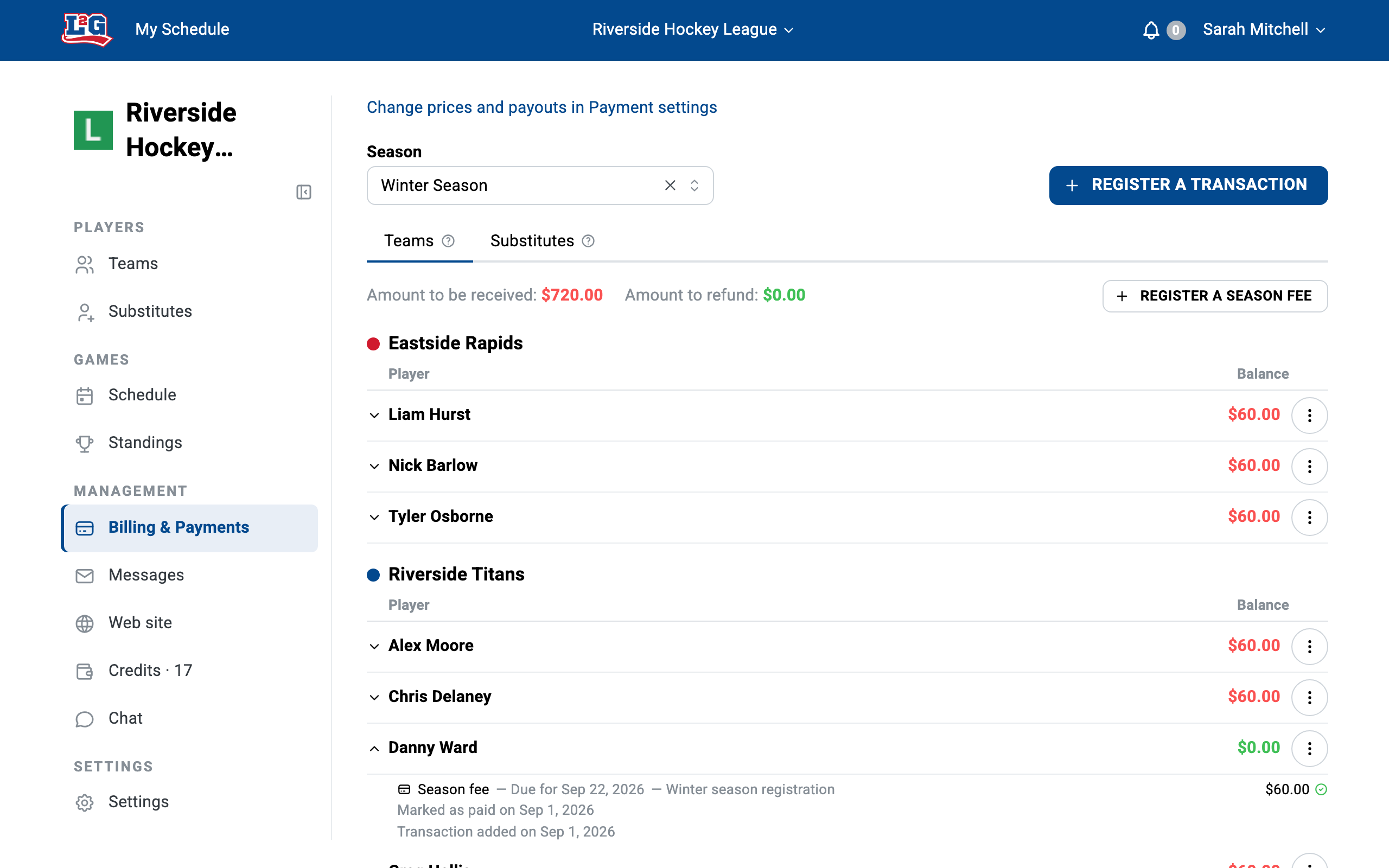
You can see paid and unpaid amounts on each game page. In the Billing view, an unpaid substitution appears as a fee in red; once it is paid, the balance returns to zero and turns green. Nothing to track by hand.
For the substitute’s point of view, see paying online as a player.
Charging season fees to regular players
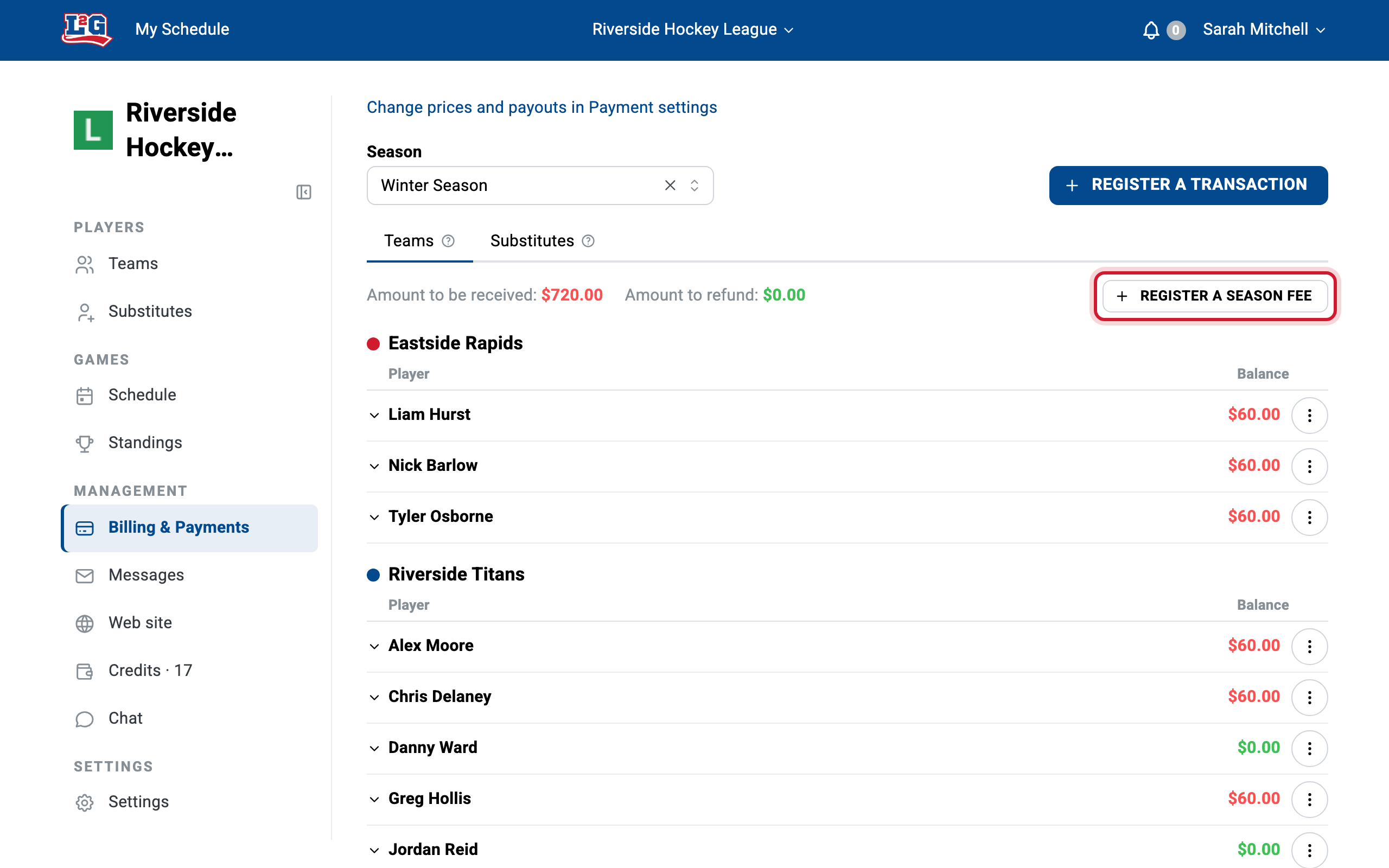
Once your Stripe account is connected, go to the Billing tab of your league management interface and click Save a season fee.
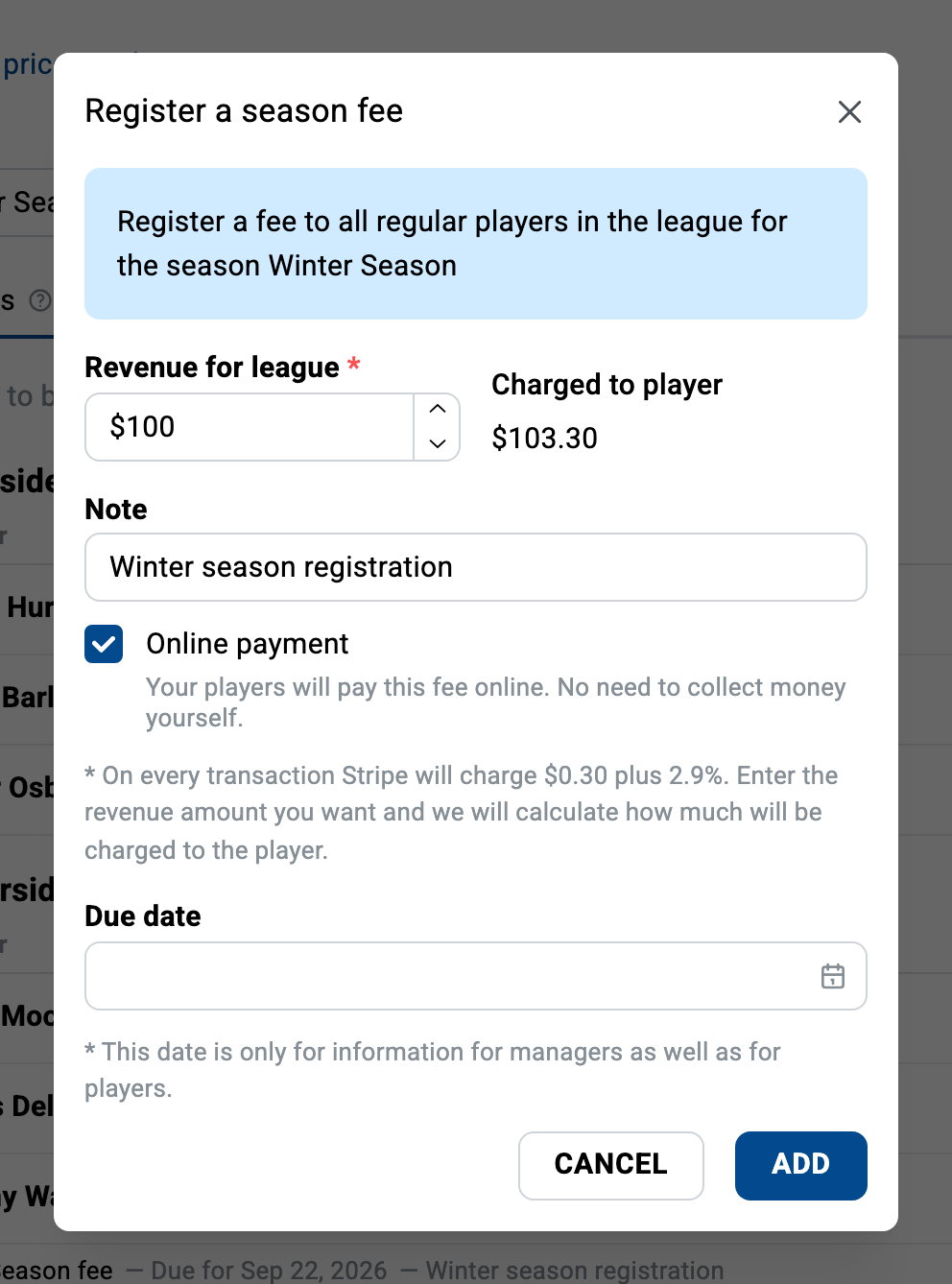
Enter the revenue you want the league to receive; the amount charged to each player, Stripe fee included, is displayed beside it. You can also add a due date and a note. Click Add.
Each player then sees the fee at the top of their schedule, on the website and in the mobile app, and pays it by credit card. As payments come in, the Billing tab shows each player’s status, updated automatically.
Refunds
Refunds are issued from your Stripe dashboard (log in at stripe.com with the account you created above). Find the payment and refund it there.
League2GO support cannot issue refunds: the money went directly to your Stripe account and League2GO never held it. If a player asks League2GO for a refund, they will be redirected to you. See who to contact.
Stripe compliance emails: don’t ignore them
Stripe periodically asks for updated business or identity information to keep your account compliant. These requests arrive by email and can land in your spam folder.
If you do not act on them, Stripe suspends your payouts: players can appear to pay, but the money stops reaching your bank account. If payments seem stuck:
- Check your inbox and spam for emails from Stripe.
- Log in to your Stripe dashboard and complete any requested verification.
Related articles
Questions? Contact us at info@league2go.com.