
League2GO can publish a public website for your league (news, rules, schedule, standings, and statistics) with no computer skills required. You can also embed those pages in a website you already own.
See a live example at https://league2go.com/demoen.
Activating the website
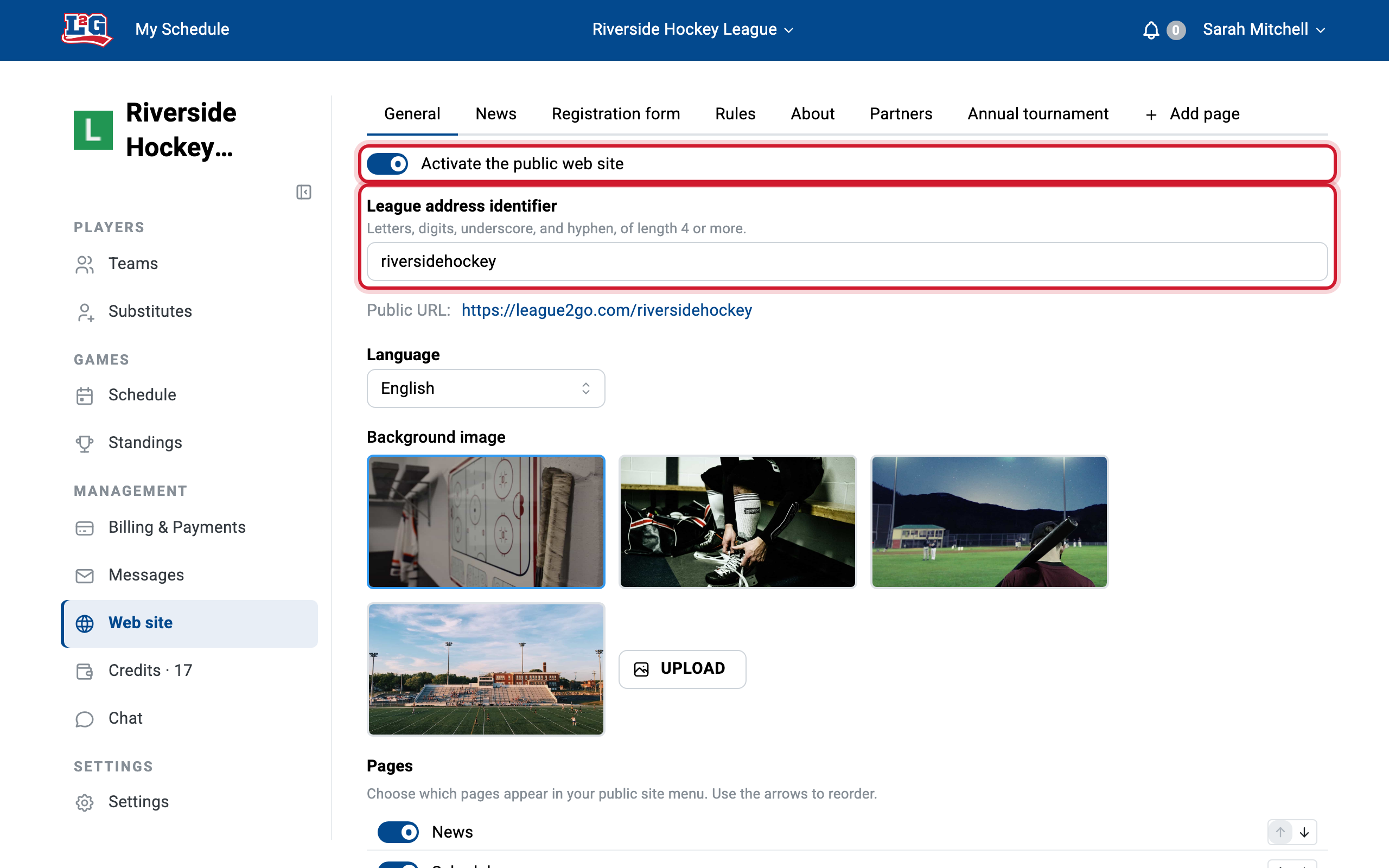
Go to the Website tab of your league settings and activate the website. This makes the information you choose available on the internet, to visitors who are not signed in.
Enter the keyword that identifies your league in your site address. For example, if you enter “riversidehockey”, your website’s address is https://league2go.com/riversidehockey. Save, then configure the pages of your site.
Choosing and editing pages
From the General tab, activate the calendar, standings, or statistics pages as needed.
Use the News tab to inform your players of the latest updates. News items are only published once activated.
Three built-in pages let you post information about your league: Rules, About, and Partners. Enter your content with the text editor, then activate each page to show it in your site’s menu. The formatting you set is kept on the published page. The editor lets you upload images, choose text colors, add separators, tables, and videos, and preview a page before publishing it.
To add a custom page, go to the Website tab of your league settings and click the Add page pill at the end of the tab row. Enter the page’s menu name, its address, and its content. Your custom pages then appear in the Pages list of the General tab, where a switch shows or hides each one and the arrows set their order in the site menu.
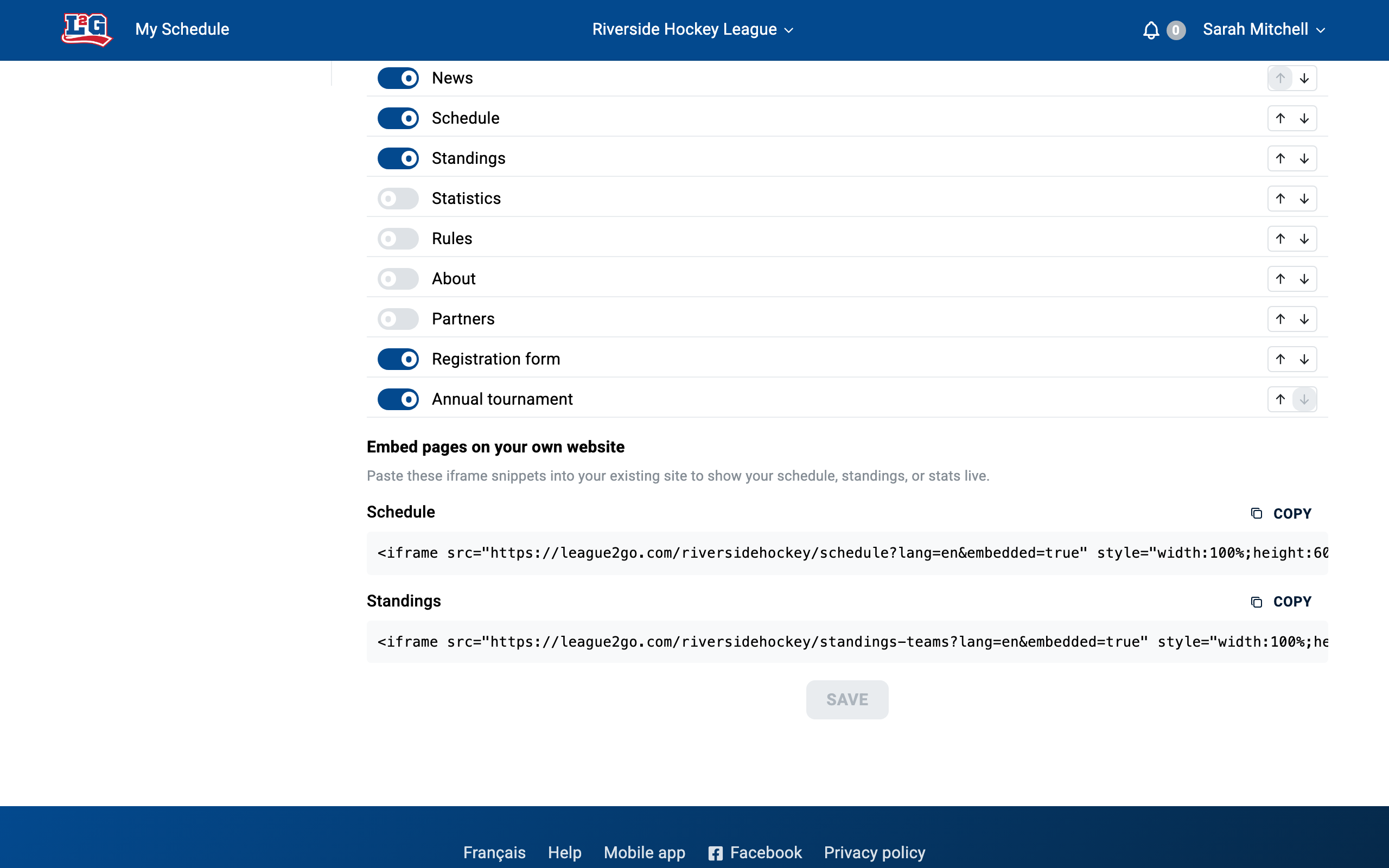
You can also change the website’s background image from the settings: pick one of the available images or upload your own.
The registration form
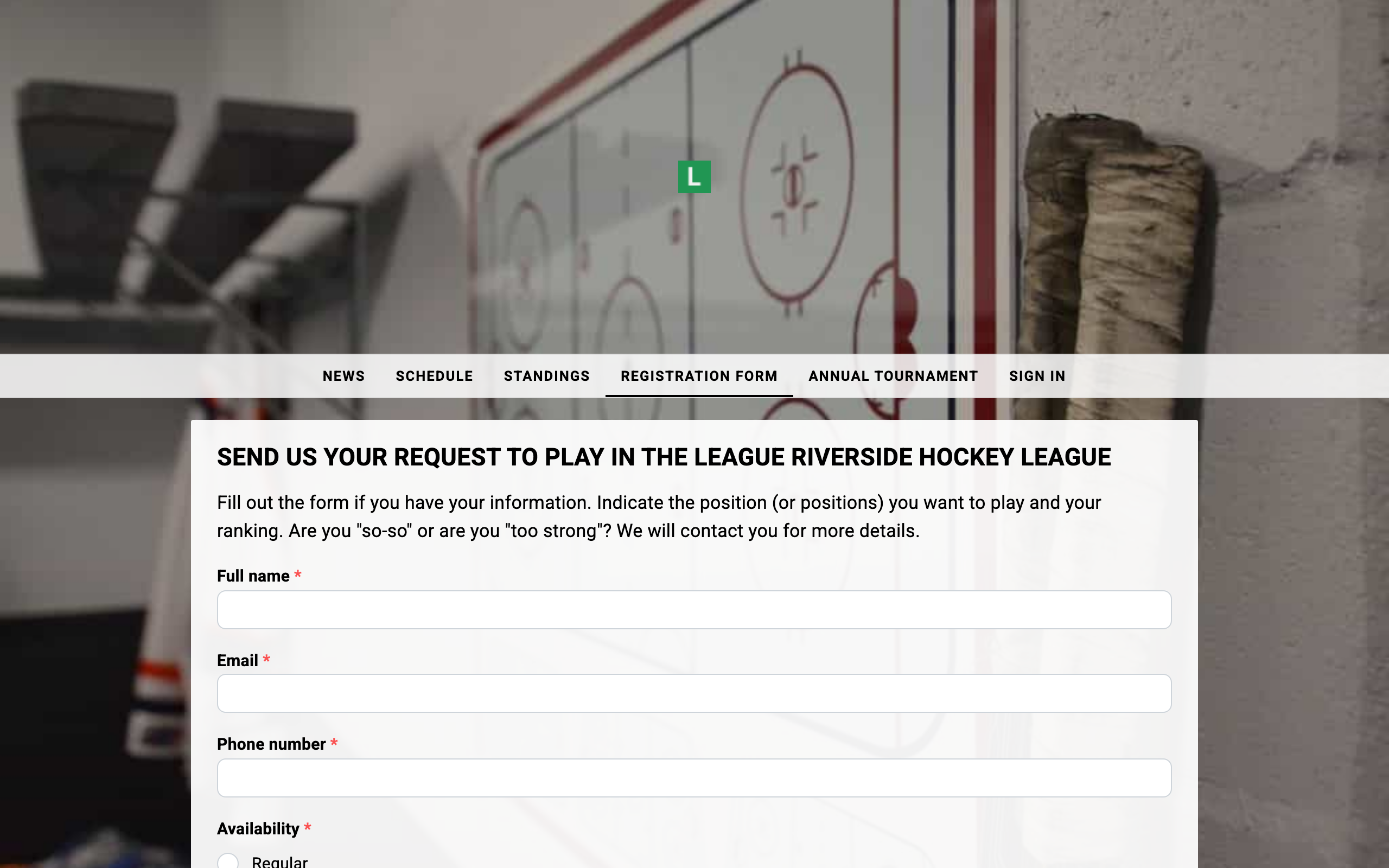
Your league website can include a registration form so interested players can sign up for your league. Submitted registrations are sent by email to the league managers, who then follow up and add the players. See adding players.
Embedding pages in your own website
If you prefer to keep your own website, you can embed your League2GO calendar, standings, and statistics into it.
- Activate the website in your league settings.
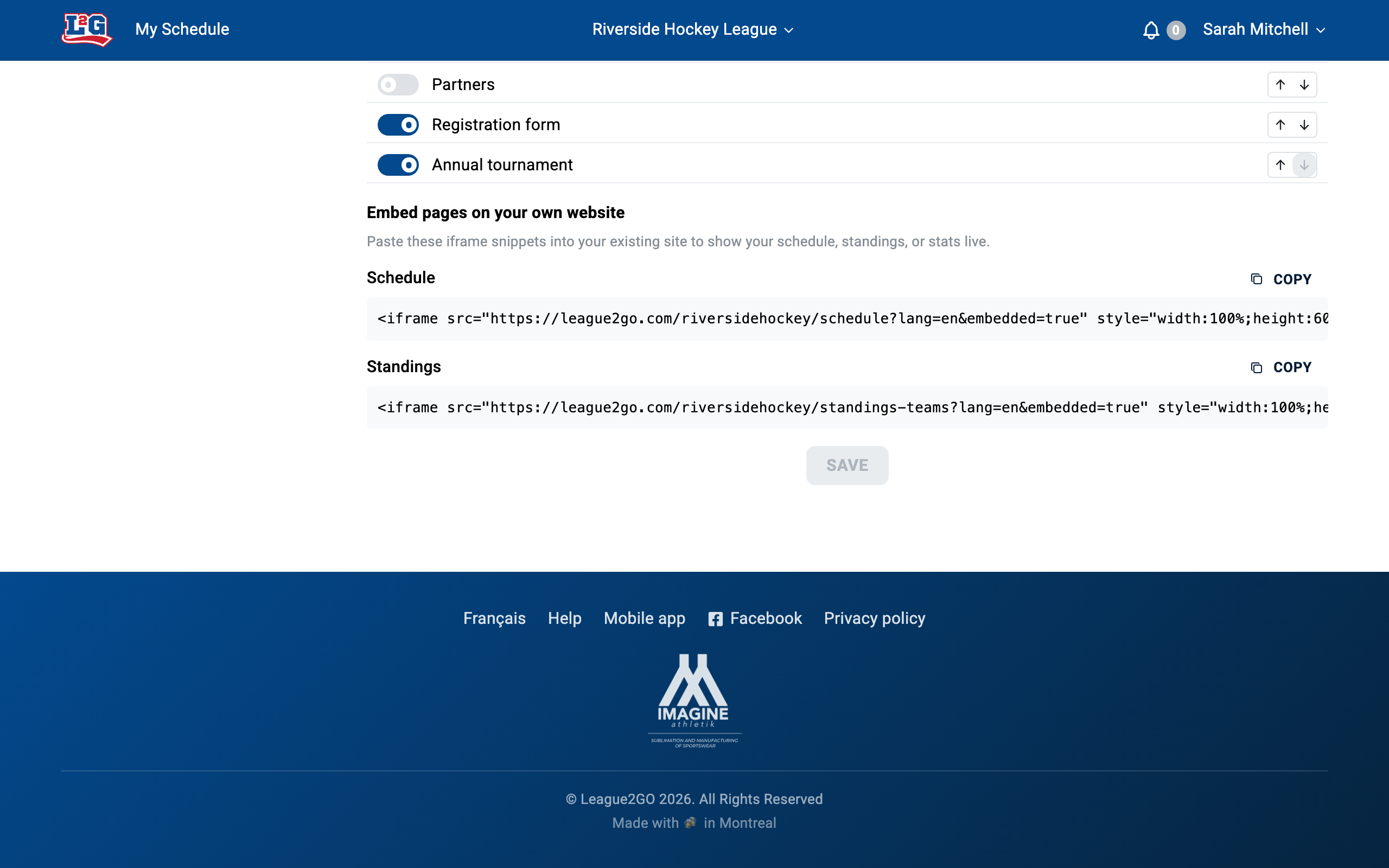
- Enable the calendar, standings, or statistics pages so their HTML embed code becomes available.
- Copy the HTML code into your website where you want the content. The pages are displayed with an
iframeHTML element.
Questions? Contact us at info@league2go.com.