
This guide covers what managers do around a single game: reviewing the lineup, managing game spots, replacing absent players, and printing or exporting the lineup. To create or cancel games, see schedule and calendar.
The game lineup
Open a game to see its lineup: each team’s players, their positions, and their status for that game. Regular players are presumed present unless they declare an absence (see presence confirmation for the alternative model where players confirm their presence instead).
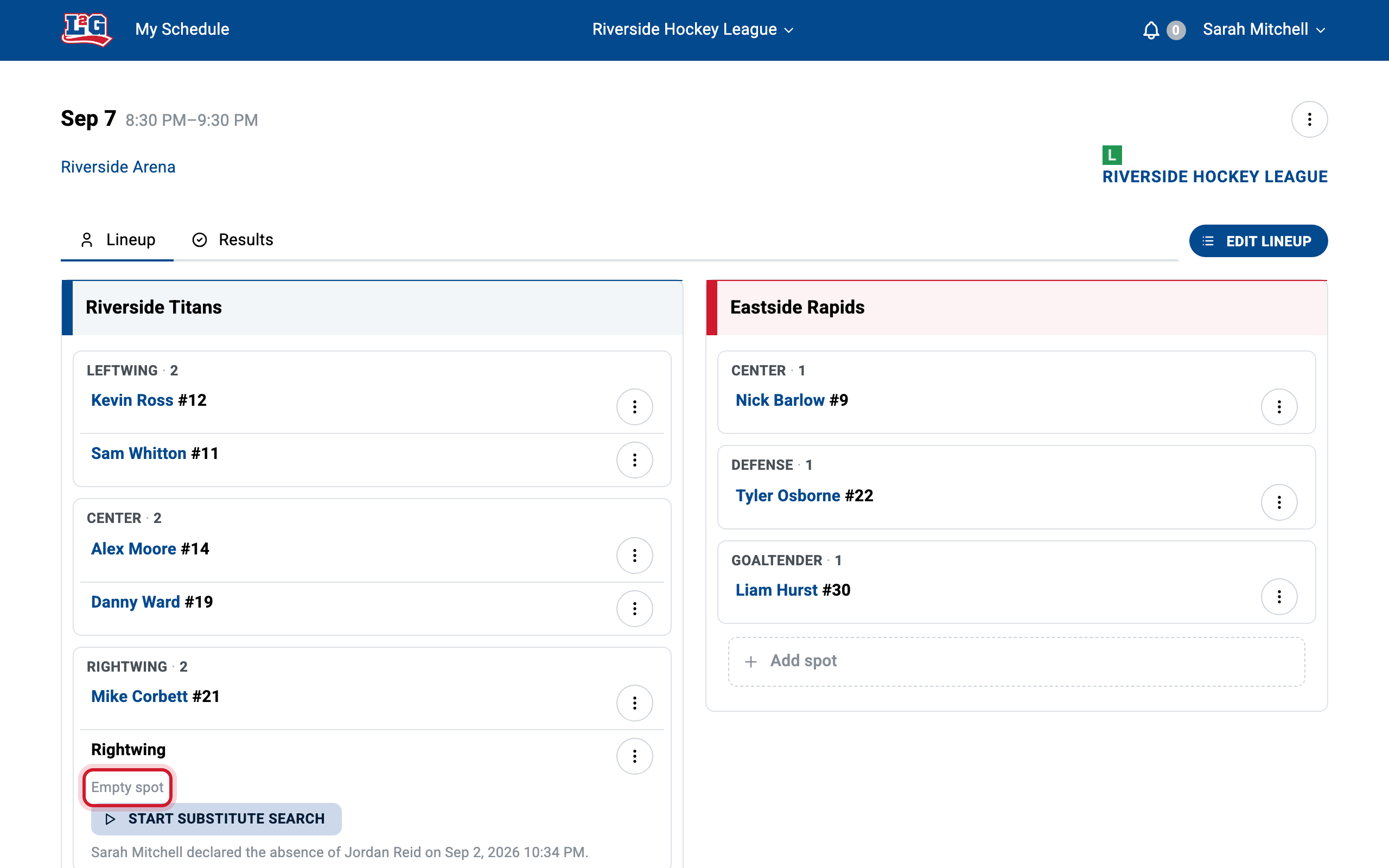
Game spots
Each place in a lineup is a game spot. Every game spot has a menu that groups its actions:
- Replace the player
- Start an automatic substitute search
- Recall substitutes
- Change the position of the spot
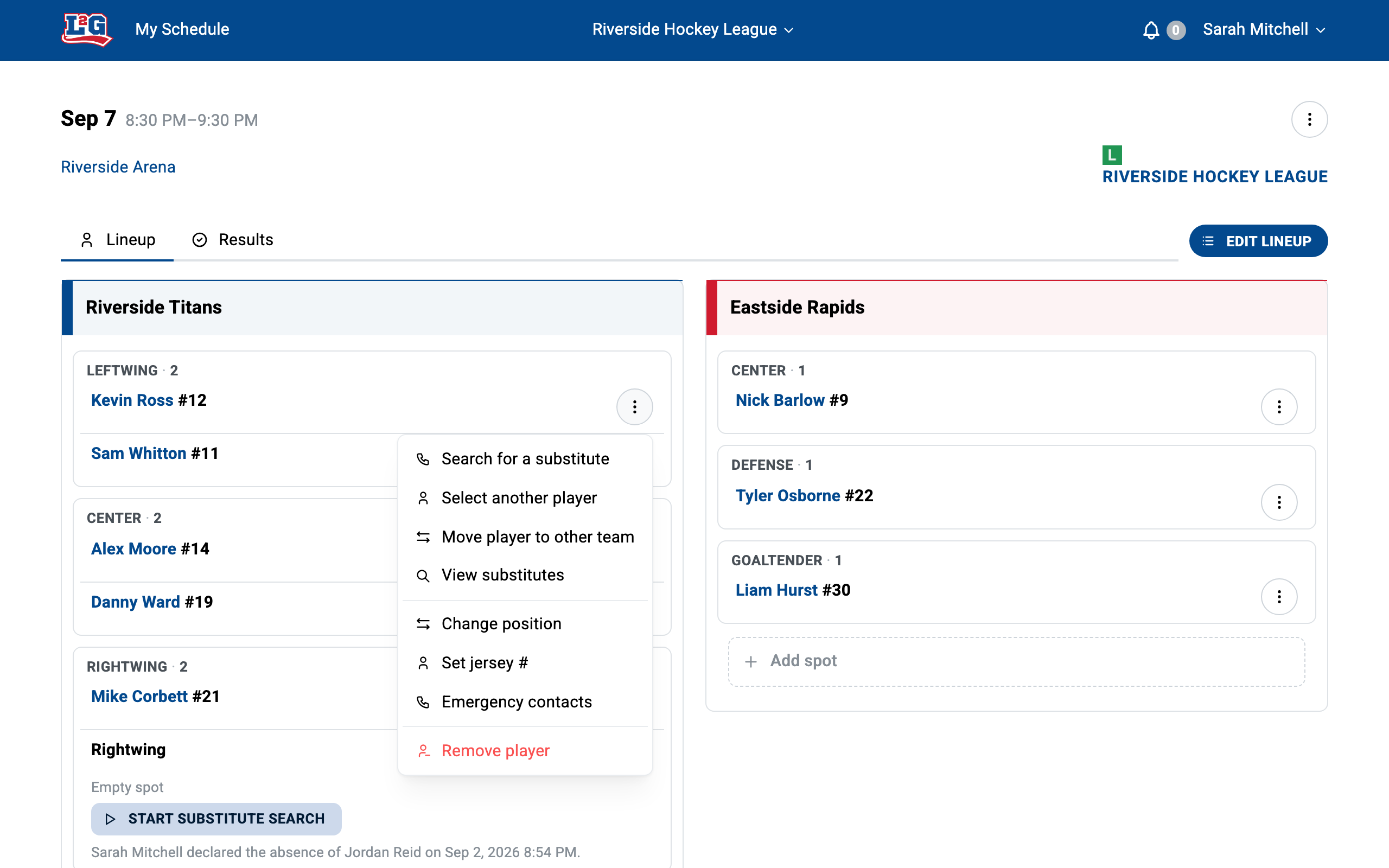
Managers can also add extra game spots to a game. These spots can be filled automatically by substitutes, which lets incomplete teams play with a full lineup. When there is a free game spot on each team, a substitute can choose which team to join.
You can rearrange a lineup around an absence. For example, if your pitcher is absent, replace him with a fielder by changing that spot’s position, then start an automatic substitute search for the now-open fielder spot.
Replacing a player manually
To replace an absent player yourself instead of using the automatic search, open the game spot menu and choose to replace the player. In the substitution window you can pick:
- a player from the same team,
- a player from another team of the league (select the other team first, then the player), or
- one of your league’s substitutes (see managing substitutes).
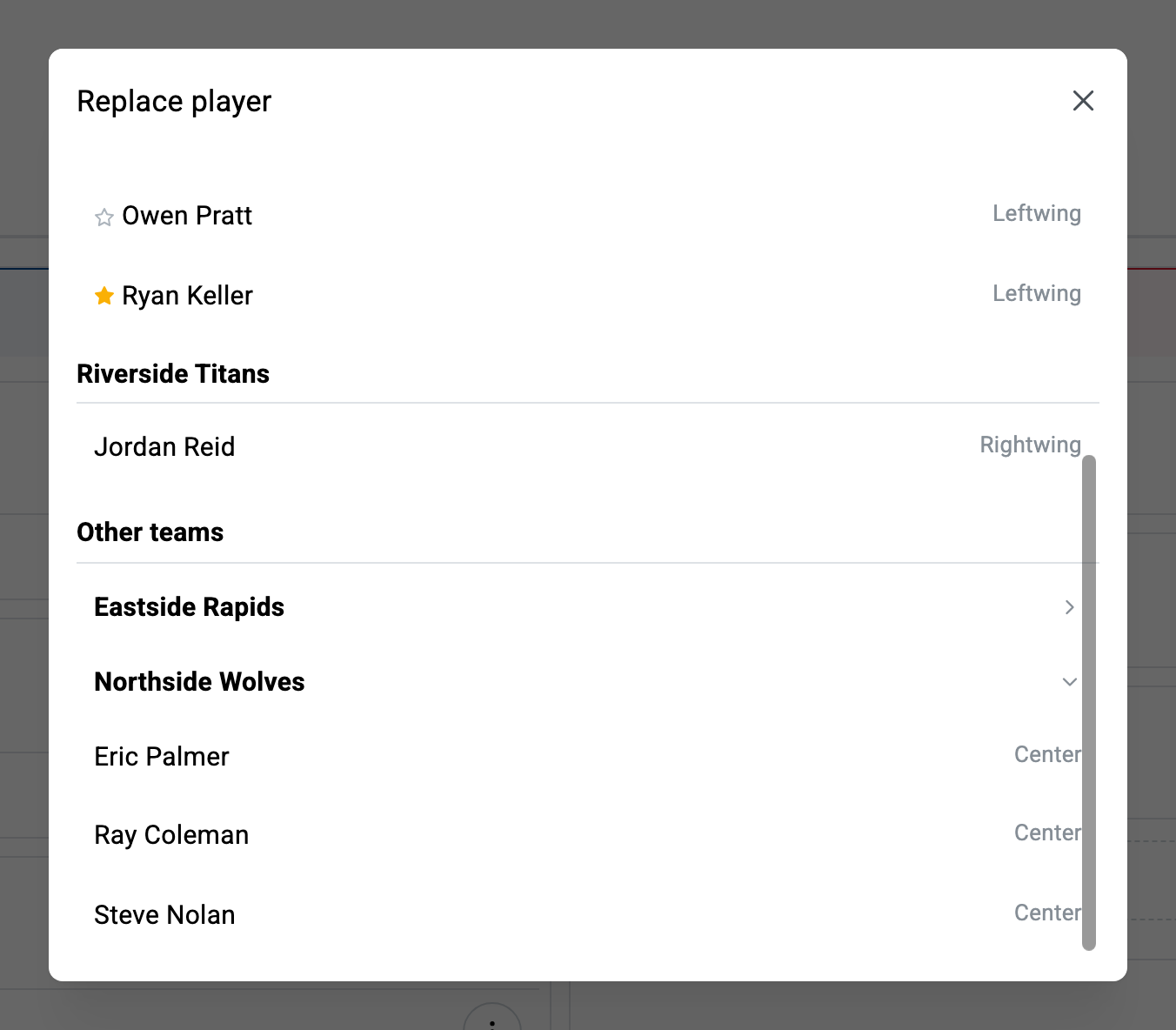
When you substitute a player manually, you can choose to automatically notify the player of the change, so you do not need to contact them yourself.
For how automatic searches work, see the substitute search overview and the search settings reference.
Simple lineup or lines
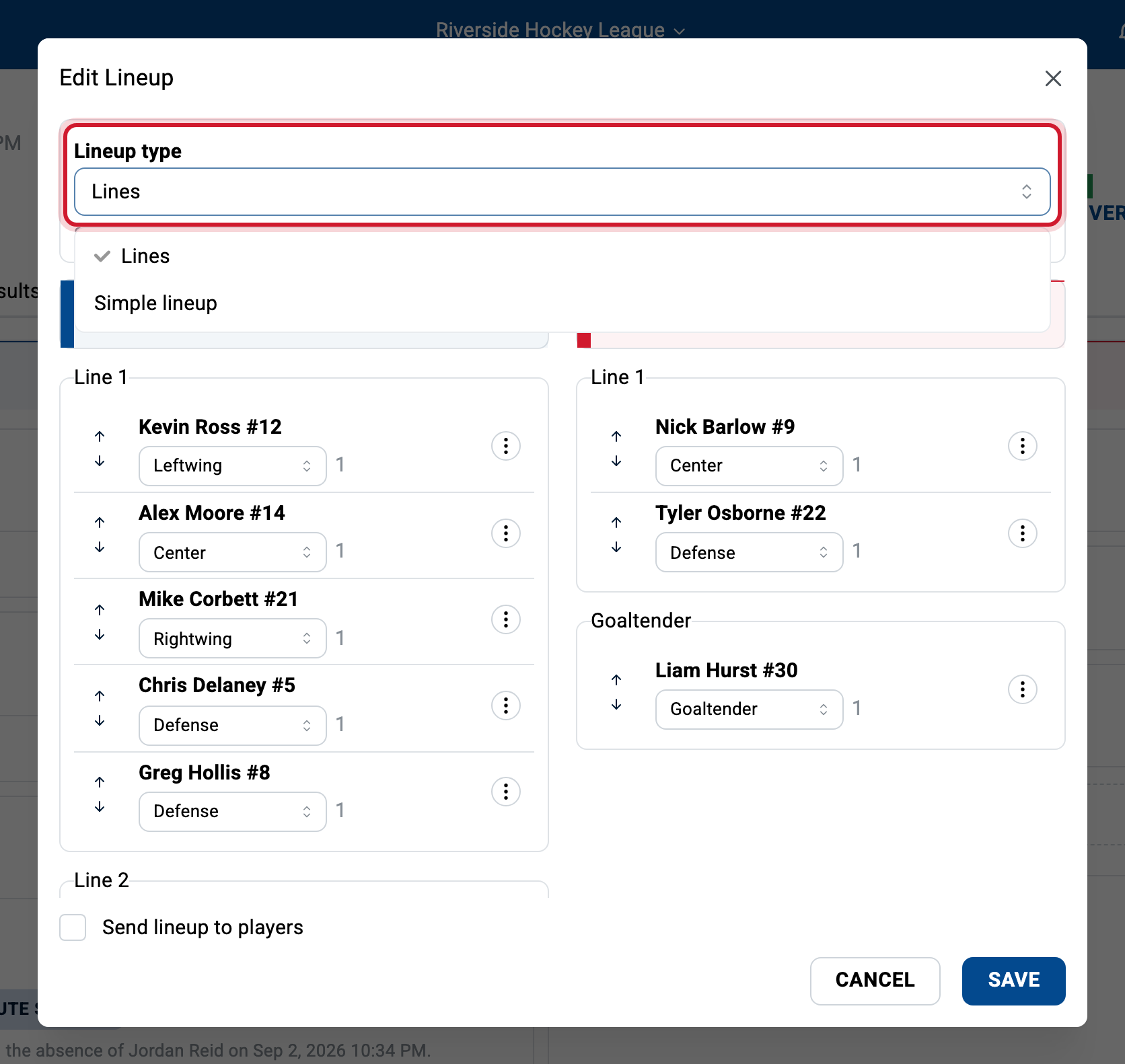
The lineup can be displayed in two modes:
- Simple lineup: a flat list of players and positions.
- Lines: players grouped into forward lines and defence pairings, with the goaltender on their own.
Open the lineup editor with Edit Lineup and use the Lineup type selector to switch between the two, so leagues that do not organize lines can keep the simple view.
Printing the lineup
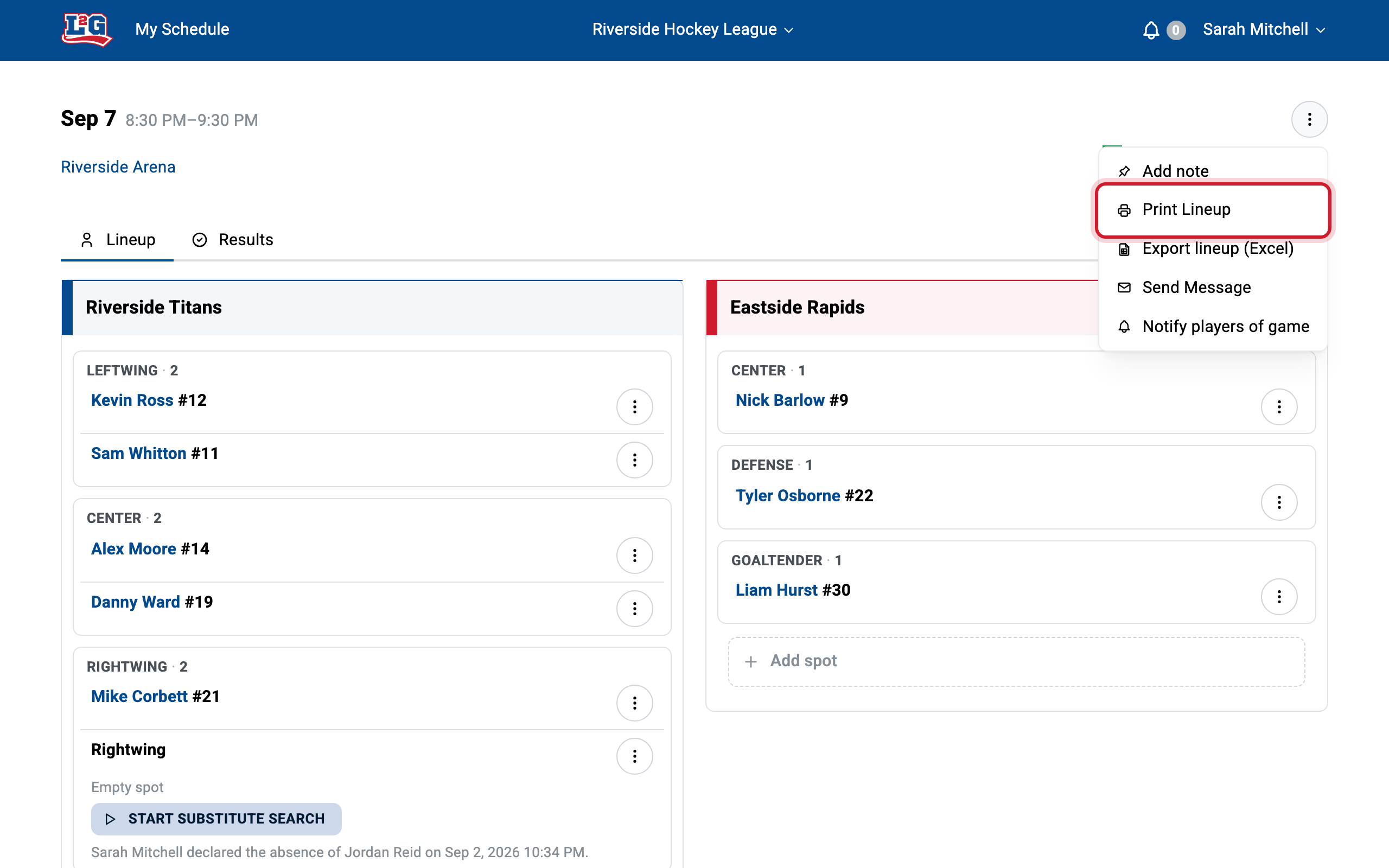
To print a game lineup, go to the game details and click the Print Lineup button. A print-optimized page with the game’s information is generated. You can post these pages at the arena, for example to direct players to the right locker room.
Exporting the lineup to CSV
To note game statistics on paper or in a spreadsheet, open the game’s page and click the Export Alignment button. A CSV file downloads with each player’s team, jersey number, name, position, and ranking. Open it in a spreadsheet to record the game’s information, then enter the results in League2GO. See results, standings, and statistics.
Questions? Contact us at info@league2go.com.